

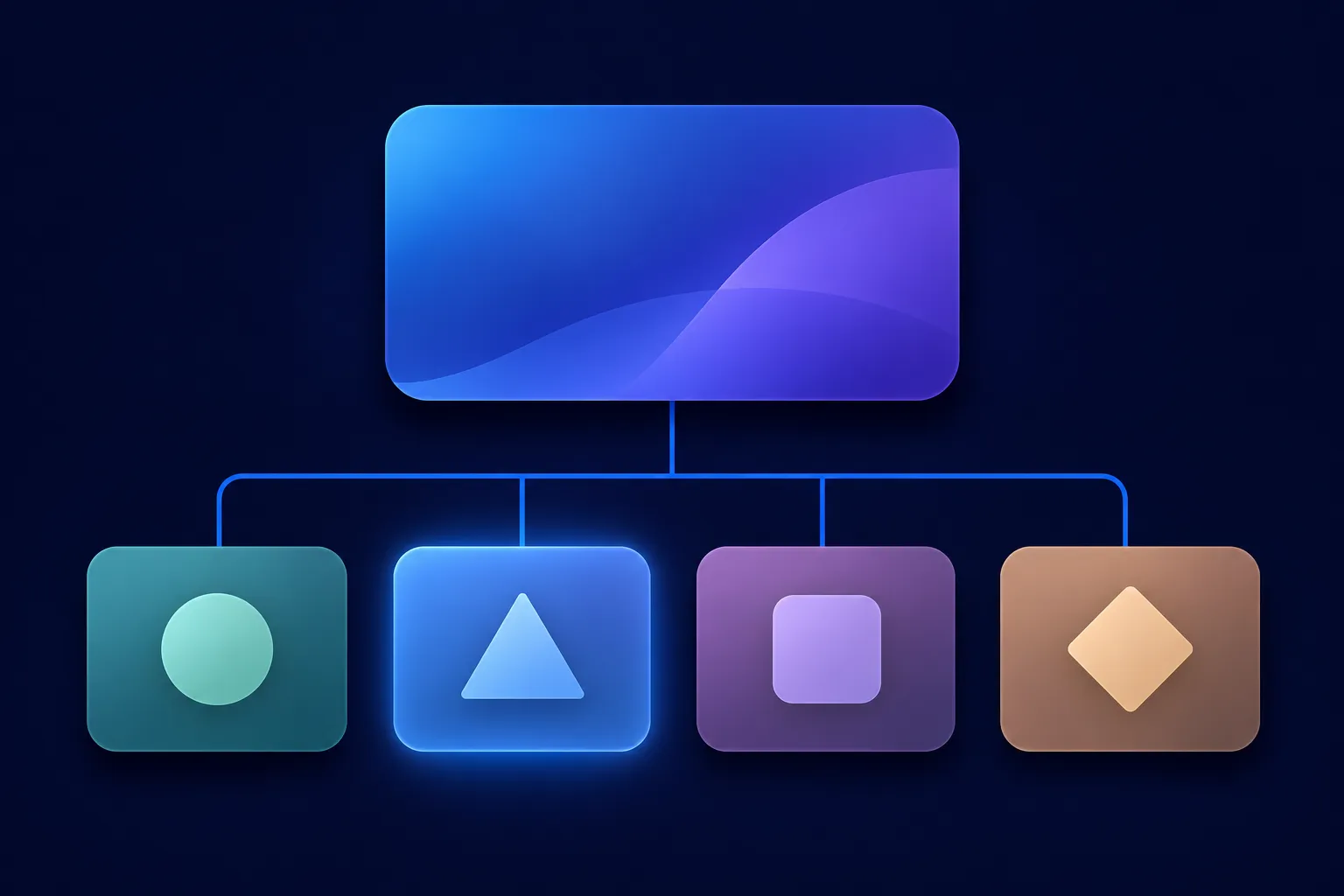
Decide first whether every size and color can be selected on one product page, or whether each variant has its own URL. That choice sets the canonical URL and the shape of your JSON-LD. After it, the markup follows one pattern: a ProductGroup for the shared product, and one Product for each variant a shopper can buy.
The pieces are linked by productGroupID, hasVariant and variesBy. Each variant also keeps ordinary product data: a name, an image, a unique identifier such as sku, and an offer with a price and a currency.
Before you write any code, look at what your store platform already outputs. Shopify and WooCommerce both generate product markup, and a second block that disagrees with the first can leave you with two descriptions of the same item.
Pick one page or separate pages first
Open one of your product pages and select a size. Does the URL change, and does the page show the matching image, price and stock state? If every variant can be selected on that one page, you have a single-page setup. If each variant lives at its own address, such as one page per color, you have a multi-page setup.
For a single-page setup, Google's product variant documentation says to keep one canonical URL for the overall group, such as https://example.com/linen-shirt, and to give every selectable variant a distinct URL, such as ?color=navy&size=m. Each of those URLs should display the matching image, price, availability and add-to-cart state.
For a multi-page setup, each variant page has its own URL and the group has no single canonical URL. Instead, every variant page carries a self-contained group definition, so the page makes sense without any other page's markup.
Everything else in the JSON-LD depends on this choice, so settle it before you touch the code.
What the group, the variants and each property mean
ProductGroup describes the shared model: the shirt design as a whole. Schema.org describes it as a prototype or template for products that vary on specified dimensions. It is not the item a shopper puts in the cart. Each Product is that item, for example the navy shirt in medium. Google added Product variant support on February 20, 2024, and its launch announcement names ProductGroup, hasVariant, variesBy and productGroupID as the building blocks.
Five properties do the connecting work:
hasVariantruns from the group to a variant, andisVariantOfruns back from a variant to its group.variesBylists the properties that distinguish the variants. Google's documentation lists the full Schema.org URLshttps://schema.org/color,https://schema.org/size,https://schema.org/suggestedAge,https://schema.org/suggestedGender,https://schema.org/materialandhttps://schema.org/pattern.productGroupIDis a stable text identifier for the group, such as a parent SKU. Google requires the group identifier either here or throughinProductGroupWithIDon each variant.inProductGroupWithIDsits on a variant and holds the group'sproductGroupID. It helps when the variants and the group are separate entities or live on separate pages.skugives each variant its own identifier, so one navy medium shirt is never confused with a sand large one.
A simple way to split the facts: shared details such as brand and a general description belong on the group when they apply equally to every variant. Anything that differs, such as color, size, image, sku and the offer, belongs on each variant.
Think of a long table covered in folded plain T-shirts, sorted into stacks by size and color. The table is the group, and each stack is a variant that can be counted, priced and sold on its own. The markup describes exactly that sorting, and it only works when each stack has its own label.

Include normal Product data on every variant as well. ProductGroup alone does not give Google Search the complete product data it needs, so the name, image and offer still have to be there.
Single-page JSON-LD for a shirt with two variants
The example below describes a fictional shirt on one page. It uses example.com URLs and invented names, and it nests two variants inside hasVariant. It is the compact form; you can also place the variants as separate entities and connect them with isVariantOf and @id, as this example does in addition to nesting.
{
  "@context": "https://schema.org",
  "@type": "ProductGroup",
  "@id": "https://example.com/linen-shirt#group",
  "name": "Harbor Linen Shirt",
  "description": "A fictional linen shirt offered in navy and sand, with medium and large sizes.",
  "url": "https://example.com/linen-shirt",
  "brand": {
    "@type": "Brand",
    "name": "Example Harbor"
  },
  "productGroupID": "HLS-100",
  "variesBy": [
    "https://schema.org/color",
    "https://schema.org/size"
  ],
  "hasVariant": [
    {
      "@type": "Product",
      "@id": "https://example.com/linen-shirt#navy-medium",
      "name": "Harbor Linen Shirt, Navy, Medium",
      "image": "https://example.com/images/harbor-linen-shirt-navy.jpg",
      "sku": "HLS-100-NV-M",
      "color": "Navy",
      "size": "M",
      "isVariantOf": {
        "@id": "https://example.com/linen-shirt#group"
      },
      "offers": {
        "@type": "Offer",
        "url": "https://example.com/linen-shirt?color=navy&size=m",
        "price": 49.99,
        "priceCurrency": "USD",
        "availability": "https://schema.org/InStock"
      }
    },
    {
      "@type": "Product",
      "@id": "https://example.com/linen-shirt#sand-large",
      "name": "Harbor Linen Shirt, Sand, Large",
      "image": "https://example.com/images/harbor-linen-shirt-sand.jpg",
      "sku": "HLS-100-SD-L",
      "color": "Sand",
      "size": "L",
      "isVariantOf": {
        "@id": "https://example.com/linen-shirt#group"
      },
      "offers": {
        "@type": "Offer",
        "url": "https://example.com/linen-shirt?color=sand&size=l",
        "price": 54.99,
        "priceCurrency": "USD",
        "availability": "https://schema.org/InStock"
      }
    }
  ]
}
Replace every value with a fact from your own product page. That means the group @id, name, url and brand, the productGroupID, and for each variant the name, image address, sku, color, size, offer URL, price, currency and availability. The prices here differ between variants on purpose: if your variants cost the same, repeat the same price on each.
Match each value to what the shopper sees. If the visible page says the sand large shirt is out of stock, the offer should say https://schema.org/OutOfStock. Add itemCondition, a longer description for each variant and a real gtin when you have them; Google lists these as recommended for merchant listings. Leave out ratings, reviews and identifiers you do not have, because invented values describe a product that does not exist.
The syntax follows the W3C JSON-LD 1.1 Recommendation. Place the block in a script element of type application/ld+json in the page's HTML.
Multi-page JSON-LD for one page per variant
When each variant has its own page, every page carries the group again, with no url on the group, because the group has no single page of its own. The page for navy medium describes that variant in full and lists the other variant with its URL and sku. Google's documentation says to include the variants present on the page in full and to link to variants on other pages with Product entries that contain their URLs.
{
  "@context": "https://schema.org",
  "@type": "ProductGroup",
  "name": "Harbor Linen Shirt",
  "description": "A fictional linen shirt offered in navy and sand, with medium and large sizes.",
  "brand": {
    "@type": "Brand",
    "name": "Example Harbor"
  },
  "productGroupID": "HLS-100",
  "variesBy": [
    "https://schema.org/color",
    "https://schema.org/size"
  ],
  "hasVariant": [
    {
      "@type": "Product",
      "name": "Harbor Linen Shirt, Navy, Medium",
      "url": "https://example.com/linen-shirt/navy-medium",
      "image": "https://example.com/images/harbor-linen-shirt-navy.jpg",
      "sku": "HLS-100-NV-M",
      "color": "Navy",
      "size": "M",
      "offers": {
        "@type": "Offer",
        "url": "https://example.com/linen-shirt/navy-medium",
        "price": 49.99,
        "priceCurrency": "USD",
        "availability": "https://schema.org/InStock"
      }
    },
    {
      "@type": "Product",
      "name": "Harbor Linen Shirt, Sand, Large",
      "url": "https://example.com/linen-shirt/sand-large",
      "sku": "HLS-100-SD-L"
    }
  ]
}
Change the page URL and the full variant block on each page, and keep the productGroupID, variesBy and the list of other variants identical across the set. Every variant still needs its own sku or other unique identifier. Do not rely on a group defined on a different page; each variant page has to make sense on its own.

Required and recommended properties for Google features
Google's labels depend on which feature you are targeting, so name the feature before reading any label. For the product variant markup, Google requires name and hasVariant on the group when you use the nested form, plus the group identifier through productGroupID or inProductGroupWithID. It recommends variesBy, url (single-page setups only), brand and description on the group, and sku, color and size on each variant.
For a page where shoppers can buy the product, the merchant listing documentation requires Product.name and Product.image, plus Offer.price and priceCurrency or the matching priceSpecification fields. It recommends availability, condition, identifiers such as gtin and mpn, variant attributes and an offer URL. For an editorial page where the product cannot be bought directly, the product snippet documentation requires Product.name plus at least one of review, aggregateRating or offers.
Keep these labels in their place. They describe Google Search features, not Schema.org validity in general, and they do not automatically apply to Bing, Yandex, Apple or AI systems. Google says variant markup can make products eligible for variant information in merchant listing experiences, but eligibility does not promise a particular appearance. Google's documentation treats variant markup as part of product and merchant listing eligibility, so it is not a separate rich result on its own.
Check what Shopify, WooCommerce and other platforms already output
On Shopify, the structured_data Liquid filter converts a product object into Schema.org data. Shopify's documentation says a product without variants is output as Product, and a product with one or more variants is output as ProductGroup, with variant-aware offers that include price, currency, availability and a variant URL. Themes and apps can add or replace JSON-LD, so view the rendered HTML of a product page and count the product blocks before adding your own.
WooCommerce works differently. Its variable products let each variation carry its own SKU, price, stock, image and shipping settings. The standard product markup outputs a single aggregated product block for a variable product, which can omit variation-specific SKU, GTIN, MPN and individual prices. WooCommerce's expanded structured data documentation describes variation-level markup as an extension feature that adds each variation's price, URL, title, brand, condition, GTIN, MPN and SKU. After any theme, SEO plugin, feed or extension change, look at the page's HTML again.
Other platforms follow the same rule: read the output before you add to it.
Wix creates a Product preset for Wix Stores product pages that you can view or customize. Webflow supports manual and AI-generated schema markup, and its Ecommerce system offers option sets and variants.
On Squarespace, HubSpot, WordPress themes and Next.js, open the final HTML, find out which theme, plugin, module or application code emits the product JSON-LD, and remove duplicate or conflicting blocks. Next.js is a framework, so the application or commerce integration generates the markup.
Make variant markup readable for Bing and AI search
Bing supports Schema.org in JSON-LD, so the same variant markup serves it (see Bing's structured data guidance). Its webmaster guidelines say structured data should reflect visible content. Yandex supports JSON-LD, Microdata and RDFa, and its semantic markup FAQ says the page must also be indexed and may be moderated before a snippet appears.
To make pages eligible for ChatGPT search answers, allow OAI-SearchBot in robots.txt; the crawler documentation treats GPTBot as a separate control. Copilot web search may fetch from Bing. Keep the page crawlable and your product facts in visible HTML. See whether AI systems use schema markup.
Test the page in the right order
Work through the same sequence every time, from the model choice to the live page:
- Choose single-page or multi-page variants.
- Give the group one stable
productGroupID. - Give every variant a unique
skuor other identifier. - List the distinguishing properties in
variesBywith full Schema.org URLs. - Describe each variant with its name, attributes, image and offer.
- Match every value to the visible product data.
- Test the JSON-LD, then the live page, then the reports after deployment.
For the first test, paste the JSON-LD into the Schema Markup Validator, which checks Schema.org vocabulary only. You can also run it through Schema Nova's schema validator. Then test the live page with Google's Rich Results Test and URL Inspection in Search Console, and watch the Merchant listings and Product snippets reports once the page is crawled. In Bing Webmaster Tools, the URL Inspection Markup card shows detected JSON-LD and markup issues. Yandex offers its structured data validator, which checks both markup recognition and requirements for Yandex services.
Keep the condition beside each result. A clean test does not guarantee a merchant listing, a variant display or a snippet, and Google, Bing and Yandex each say so for their own results. When a test reports a problem, look first for a price or availability value that differs from the visible page, two product blocks on one URL, and a variant with a missing or repeated sku.
Build each variant's data with the Product generator
Each variant needs its own name, image, identifier and offer. Use the Product schema generator to draft the Product data for one variant, then place the result inside hasVariant and add the group fields around it. For the wider rules on price, availability and reviews, read the product schema markup guide, and see the JSON-LD schema examples for other types written in the same style.
Questions people ask
Does every variant need its own SKU?
Give each purchasable variant its own sku or another unique identifier. Google lists sku as recommended for variant markup, and a unique value is what keeps navy medium and sand large apart. The group uses productGroupID instead.
What is the difference between hasVariant and isVariantOf?
They describe the same relationship from opposite ends. hasVariant sits on the group and points to its variants, while isVariantOf sits on a variant and points back to its group. Google requires isVariantOf when a variant is written outside the group's hasVariant list.
Do Shopify and WooCommerce generate variant markup automatically?
Shopify's structured_data filter outputs a product with variants as ProductGroup, though a theme or app may change the final result. WooCommerce's standard markup gives one aggregated block for a variable product, and variation-level markup comes from its expanded structured data extension. Look at each page's HTML to see what is actually there.
Do separate variant pages need separate JSON-LD?
Yes. Each variant page needs a self-contained group definition with its own variant described in full, plus URLs for the variants that live elsewhere. The group has no single canonical URL in this setup.
Can valid product markup guarantee a rich result?
No. Valid markup can make a page eligible for a feature, and each search engine decides what to display. Google says eligibility for variant information in merchant listings does not guarantee a particular appearance, and Bing and Yandex say the same about snippets.