


Add one JSON-LD Product object to each product page that sells directly. Nest an Offer inside it, and make its price, priceCurrency, availability and itemCondition match what shoppers see on the page. Add AggregateRating or Review only when those ratings are visible on the page and describe that product.
Each Google feature has its own required fields, and Merchant Center, Bing and the AI search services each publish their own documentation. Before you add anything, check what your theme, app or plugin already outputs, because a second Product object can conflict with the first.
Valid markup does not guarantee a rich result, a ranking, traffic or an AI citation, and a valid block with the wrong price is not ready. Write the object, test the rendered page, and update it whenever price, stock, shipping, returns or ratings change.
Pick the Google feature your page is for
Google groups product markup into features, and the required fields differ between them. Google's product introduction lists product snippets, merchant listings, Google Images, Google Lens, Popular Products and shopping knowledge panels as places product data can appear. For a store, two of those decide which fields you fill in first.
Merchant listings are for pages where shoppers can buy from the merchant. For this Google feature, Product.name, Product.image and a nested Offer with price and priceCurrency are required. The nested object must be an Offer, not only an AggregateOffer, and the price must be greater than zero. The details are in Google's merchant listing documentation.
Product snippets cover product information pages, editorial reviews, aggregators and product pages. For this feature, Product.name is required, plus at least one of offers, review or aggregateRating, as described in Google's product snippet documentation. A page that sells directly should follow the merchant listing fields, which include an Offer and so cover the snippet minimum as well.
Google says valid markup makes a page eligible for these appearances but does not guarantee them. Treat the required fields as the starting line for each feature, and keep the optional fields for details that are true and visible.
Match every property to something shoppers can see
Start from the page, not from the code. Write down the product name, the main photo, the price, the currency, whether the item is in stock and whether it is new, used or refurbished. Each of those facts has a property, and the rule that holds across Google, Bing and Yandex is that the markup describes what the page already shows.
Take a small online ceramics shop as an example. The owner photographs each mug on a plain white sweep, then lists the same facts beside that photo: the name, the price in dollars, how many are left and the shipping promise. The markup is a second copy of that list in a format a crawler reads without guessing.

On the Product object, name is the visible product name and image should point to crawlable, indexable images that represent the product. Add description that matches the visible description, brand as a nested Brand or Organization, and sku as your stable SKU. Add gtin only when you have the real identifier, never an invented value.
On the nested Offer, these properties do the work:
priceis the active price, andpriceCurrencyis a three-letter ISO 4217 code such asUSD.availabilityis one valid Schema.org value, such asInStockorOutOfStock.itemConditionisNewCondition,UsedConditionorRefurbishedCondition.urlis the purchase URL, including the selected variant where that matters. The product variant guide covers pages with several variants.priceValidUntilis a future ISO 8601 date, and Google documents that a past date can prevent display.
Google marks availability, itemCondition and priceValidUntil as recommended for merchant listings, so add them when the information is true and visible. Schema.org's Offer type defines each value if you want the full vocabulary.
Write the basic Product and Offer
This example uses a fictional lantern and example.com. Replace every value with the facts on your own page, and put the finished block in a <script type="application/ld+json"> element in the HTML your server sends. Markup that JavaScript adds late can disagree with the page, especially when price and stock change often.
{
  "@context": "https://schema.org",
  "@type": "Product",
  "@id": "https://example.com/products/example-lantern#product",
  "name": "Example Camp Lantern",
  "image": [
    "https://example.com/images/example-camp-lantern.jpg"
  ],
  "description": "A fictional rechargeable camp lantern with three brightness settings.",
  "sku": "EX-LANTERN-001",
  "brand": {
    "@type": "Brand",
    "name": "Example Brand"
  },
  "offers": {
    "@type": "Offer",
    "url": "https://example.com/products/example-lantern",
    "price": 39.99,
    "priceCurrency": "USD",
    "availability": "https://schema.org/InStock",
    "itemCondition": "https://schema.org/NewCondition"
  }
}
This working example leaves priceValidUntil out on purpose. If the price on the page is a regular price with no end date, there is nothing to declare. If it is a time-limited price, add priceValidUntil, or validThrough for a sale window, with an end date that has not passed, and remove it when the sale ends.
The @id gives the product a stable identifier that other markup on the site can point to. If you connect products to an organization or breadcrumbs, the schema graph builder and the breadcrumb schema generator produce markup that can share the same identifiers.
Add ratings only when shoppers can see them
Add aggregateRating when the page visibly shows a combined rating for this product. It must describe this product, not the store as a whole and not a different product, and the reviews behind it must be genuine. Ratings that are hidden from shoppers, written by the seller about itself or borrowed from another item do not belong in the markup.
In the rating object, ratingValue and reviewCount are the fields to fill in. bestRating and worstRating are optional when the page uses the default five-point scale, but writing them removes any doubt about the scale. If the page also shows individual reviews, Review is the type for each one, and the review schema guide covers the rules for those.
Here is the same lantern with a visible rating of 4.6 from 24 reviews. Change the numbers to match the figures printed on your page, and update them when the page's figures change.
{
  "@context": "https://schema.org",
  "@type": "Product",
  "@id": "https://example.com/products/example-lantern#product",
  "name": "Example Camp Lantern",
  "image": [
    "https://example.com/images/example-camp-lantern.jpg"
  ],
  "description": "A fictional rechargeable camp lantern with three brightness settings.",
  "sku": "EX-LANTERN-001",
  "brand": {
    "@type": "Brand",
    "name": "Example Brand"
  },
  "aggregateRating": {
    "@type": "AggregateRating",
    "ratingValue": 4.6,
    "reviewCount": 24,
    "bestRating": 5,
    "worstRating": 1
  },
  "offers": {
    "@type": "Offer",
    "url": "https://example.com/products/example-lantern",
    "price": 39.99,
    "priceCurrency": "USD",
    "availability": "https://schema.org/InStock",
    "itemCondition": "https://schema.org/NewCondition"
  }
}
For product snippets, a rating can also satisfy the requirement that one of offers, review or aggregateRating be present. For a store page, keep the Offer as well, so the same block serves merchant listings.
Add shipping and return details that match your policy
Shipping and returns are recommended for merchant listings when you supply them, and they must match the policy you publish. Google recommends describing a business-wide shipping policy with ShippingService under your Organization, and a business-wide return policy with MerchantReturnPolicy under Organization too. The organization schema guide covers where that markup lives.
Put OfferShippingDetails and hasMerchantReturnPolicy under the Offer only for an exception that affects this product, or where you have no business-wide policy. Product-level return policies support a smaller set of properties and should override a global policy only when necessary. Google's shipping policy documentation and return policy documentation list every supported property.
A finite return window requires merchantReturnDays, and applicableCountry and returnPolicyCategory are required policy fields. Replace the country, the number of days and the delivery times below with your real policy.
{
  "@context": "https://schema.org",
  "@type": "Product",
  "name": "Example Camp Lantern",
  "image": [
    "https://example.com/images/example-camp-lantern.jpg"
  ],
  "offers": {
    "@type": "Offer",
    "url": "https://example.com/products/example-lantern",
    "price": 39.99,
    "priceCurrency": "USD",
    "availability": "https://schema.org/InStock",
    "shippingDetails": {
      "@type": "OfferShippingDetails",
      "shippingRate": {
        "@type": "MonetaryAmount",
        "value": 0,
        "currency": "USD"
      },
      "shippingDestination": {
        "@type": "DefinedRegion",
        "addressCountry": "US"
      },
      "deliveryTime": {
        "@type": "ShippingDeliveryTime",
        "handlingTime": {
          "@type": "QuantitativeValue",
          "minValue": 0,
          "maxValue": 1,
          "unitCode": "DAY"
        },
        "transitTime": {
          "@type": "QuantitativeValue",
          "minValue": 2,
          "maxValue": 5,
          "unitCode": "DAY"
        }
      }
    },
    "hasMerchantReturnPolicy": {
      "@type": "MerchantReturnPolicy",
      "applicableCountry": "US",
      "returnPolicyCategory": "https://schema.org/MerchantReturnFiniteReturnWindow",
      "merchantReturnDays": 30,
      "returnFees": "https://schema.org/FreeReturn",
      "returnMethod": "https://schema.org/ReturnByMail",
      "refundType": "https://schema.org/FullRefund"
    }
  }
}
In your own markup, the free shipping, the delivery times and the 30 days must all appear in the policy shoppers can read. If a customer would see a different promise at checkout, change the markup or the policy until they agree.
Keep Merchant Center and the page in agreement
Google Merchant Center is where you manage product data sources, including feeds, and shopping destinations. A feed carries Google's own product attributes, such as title, price, availability, identifiers, images, shipping and returns. Structured data on the page is a separate source that describes the page's visible product.
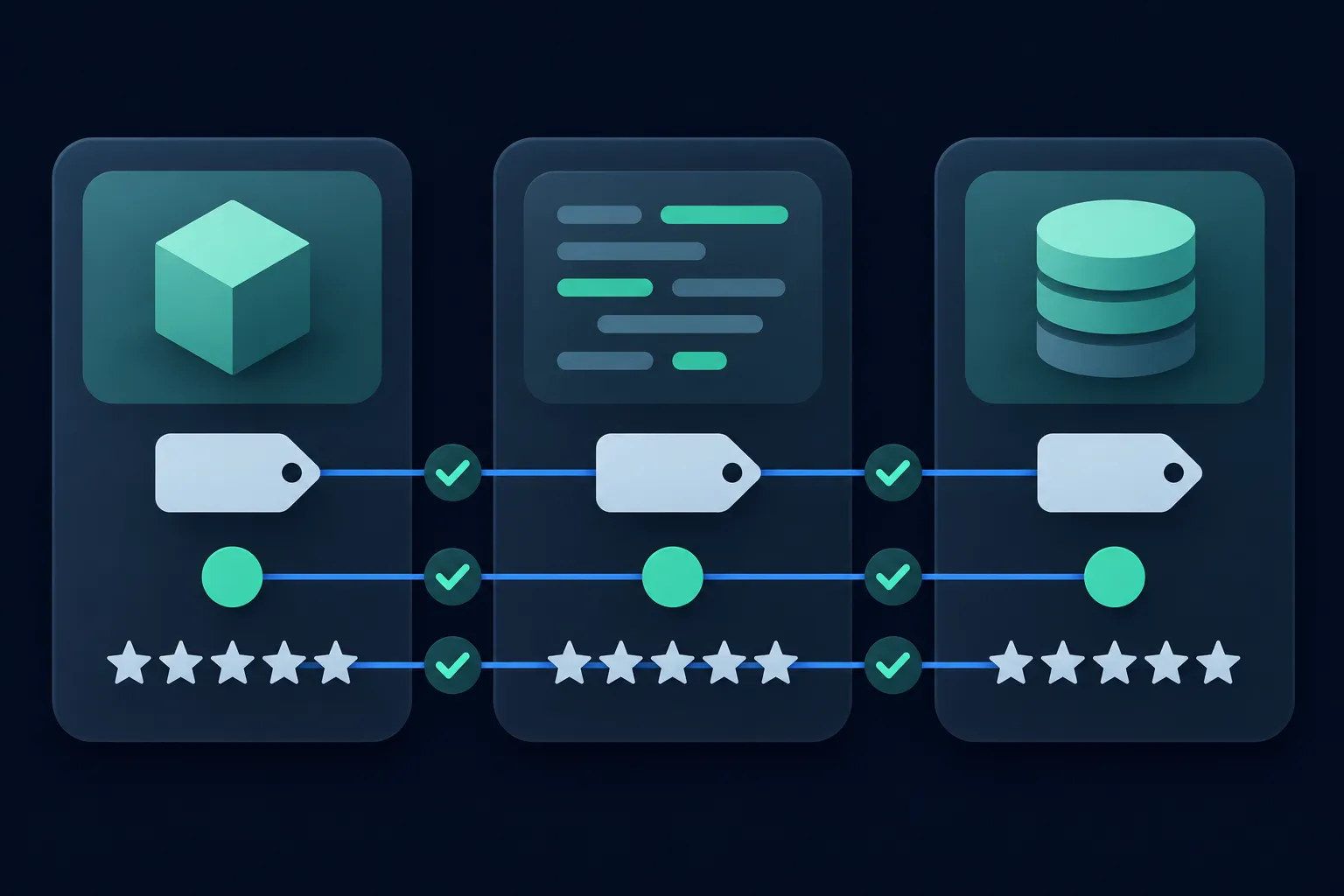
Google says structured data can support automatic item updates and website crawl product data sources. It is not a replacement for regular feed updates, so the page and the feed both stay in your routine. Google's Merchant Center structured data page explains the website markup route, and the setup instructions cover Product and Offer implementation and testing.
Price, currency, availability, condition, identifiers and landing page URLs should agree between the feed and the page. Merchant Center reports disapprovals, mismatches, missing attributes and policy problems separately from Search Console. Its product data specification lists the feed attributes, which are not identical to Schema.org property names.
Check what your platform already outputs
Open a product page, view the rendered HTML or run the URL through the Rich Results Test, and count how many Product objects appear. If your theme, app or plugin already prints one, correct it there or turn that output off before you add a second block. Two objects for one product can disagree on price or availability.
Shopify's help center describes theme-generated structured data on sitemap and theme markup, and what a theme prints varies by theme. Shopify also recommends using structured data and product attributes in its store optimization for AI article, which is a Shopify recommendation and not a Google requirement.
Wix describes preset product markup and editable SEO settings in its product page SEO article. Squarespace says it adds product structured data automatically and that the generated schemas cannot be edited or removed, in its search optimization help article. On Squarespace, the lever is keeping the product's own name, price and stock accurate.
Webflow's schema markup help article, dated January 27, 2026, covers manual and AI-generated schema markup and validation. It says fields on pages built from product data must be bound to the right values. What WordPress prints depends on your theme and on any store or SEO plugin, so read the rendered HTML to see it.
On a hand-built site or Next.js, you control the output. The Next.js JSON-LD guide, last updated February 27, 2026, covers placing JSON-LD, sanitizing it, and testing it with the Rich Results Test and the Schema Markup Validator. It does not define which Google product features a page qualifies for. For that, return to the requirements above.
If you would rather fill in a form, the Product schema generator builds the object from the facts you enter. Replace its example values with the facts on your page before you copy the result.
Test the rendered page, then watch the reports
Validity has several levels, and each needs its own test. JSON syntax must parse, Schema.org vocabulary must be used correctly, the page must meet the requirements of the Google feature you want, and then Google has to crawl and decide to show it. Passing one level does not pass the next.
- Run the live URL through Google's Rich Results Test before and after you deploy, so you test the HTML shoppers and crawlers receive.
- Check the JSON syntax with the schema validator if the test reports a parsing error.
- After Google crawls the page, open the Merchant listings report in Search Console for pages that sell directly. The Product snippets report is mainly needed for product pages that are not merchant listing pages.
- Use the Unparsable structured data report for syntax failures, URL Inspection to see the HTML Google fetched, and the Manual Actions report if Google has applied a structured data action.
- Check Merchant Center diagnostics for feed, price, availability, identifier and policy problems.
Bing Webmaster Tools has a Markup card in its URL Inspection tool. It recognizes JSON-LD, Microdata, Microformats and Open Graph, so use it when Bing traffic matters to your store. Yandex provides its own structured data validator.
Make the markup readable for Bing and AI search
The same Product block serves Bing, which reads Schema.org in JSON-LD, Microdata, RDFa, Microformats and Open Graph and lists products and offers as a supported scenario (Bing's structured data documentation). Yandex uses Product with Offer or AggregateOffer for product snippets, and wants one product per page; pages with different products do not form product snippets (product information help page).
To let ChatGPT search reach your product pages, allow OAI-SearchBot in robots.txt (OpenAI crawler documentation). Copilot web search can ground answers in Bing results (Copilot web search documentation), so Bing's view of the page matters there. Keep price, availability, specifications and reviews in visible HTML, and decide separately whether each crawler should be allowed. See whether AI systems use schema markup for the wider picture.
Fix the mistakes that break product markup
Most problems come from markup that has drifted away from the page. These are the ones to look for first:
- The price in the markup differs from the visible price or the checkout price.
priceCurrencyis missing or is not an ISO 4217 code.priceValidUntilis in the past.availabilitysaysInStockwhile the page says sold out.- A category page marks up several unrelated products as one
Product. - A page that sells directly uses only
AggregateOfferinstead of anOffer. - Ratings are hidden, written by the seller or describe a different product.
- A variant page reuses the parent product's price, URL, image, SKU or availability.
- Two plugins or a theme and a plugin output conflicting
Productobjects.
The block below is broken on purpose, so do not copy it. The page shows a price of 39.99 and a sold out label, but the markup says 29.99 and InStock. Its priceValidUntil date has also passed, and Google documents that a past date can prevent display.
{
  "@context": "https://schema.org",
  "@type": "Product",
  "name": "Example Camp Lantern",
  "image": [
    "https://example.com/images/example-camp-lantern.jpg"
  ],
  "offers": {
    "@type": "Offer",
    "price": 29.99,
    "priceCurrency": "USD",
    "availability": "https://schema.org/InStock",
    "priceValidUntil": "2025-12-31"
  }
}
This block is valid JSON and uses real Schema.org properties, so a syntax check passes it. It still fails the one test that matters here, because the markup and the page tell different stories. The fix is to change the markup to 39.99 and OutOfStock, and to drop the old date.
Update the markup whenever the product changes
Write one Product object that matches one real page, then repeat the process for each purchasable product. When price, stock, shipping, returns or ratings change, the markup changes with them, and a template that reads those values from your product data does that without manual edits.
Feature requirements change over time, so read the current Google documentation before relying on any property table, and use the Rich Results Test again after each template change. Valid markup makes a page eligible for an appearance. It does not promise one.
Questions people ask
What is Product schema markup, and what can it show?
Product schema markup is a Product object, usually written in JSON-LD, that describes an item and its offer. Depending on the provider and the page, that data can support details such as price, availability, ratings, shipping and returns. Each provider decides what it shows, and none of them promises to show it.
Do I need Google Merchant Center?
Product markup on the page and a Merchant Center feed are separate ways of giving Google product data. Merchant Center is where you manage product data sources and shopping destinations, and structured data can support website crawl sources and automatic item updates. If you use both, keep their values in agreement.
Can I add ratings without visible reviews?
No. Add AggregateRating or Review only when the ratings and reviews are visible on the page and describe that product. Markup for ratings shoppers cannot see, or that belong to another product, does not match the page.
Should I include shipping and return policies?
Include them when you have a published policy, because Google recommends them for merchant listings. Describe business-wide policies under Organization, and use product-level OfferShippingDetails or hasMerchantReturnPolicy for exceptions. Every value must match the policy shoppers can read.
Why does Google show a different price from my page?
A mismatch between the markup, the feed and the visible price is the first thing to rule out. Compare the price and priceCurrency in the rendered HTML with the page and the checkout, and check for a second Product object from a theme or plugin. Then check priceValidUntil for a past date.
Does Product schema help AI search?
Google says AI Overviews and AI Mode need no special markup beyond normal Search eligibility, and OpenAI documents OAI-SearchBot for ChatGPT search. Accurate visible product facts and matching markup serve every reader, and nothing guarantees an AI citation.