


Use the Rich Results Test to see whether Google can read your markup for a supported Google Search feature. Use the Schema Markup Validator to check whether the markup uses Schema.org types and properties correctly.
Google's own documentation recommends this split. Run your code through the validator first, then through the Rich Results Test if the type has a current Google feature, then check the published page in Search Console and in the other search tools you care about.
A passing result means the markup can be parsed or may be eligible. It does not promise crawling, indexing, rankings, a rich result or an AI citation.
Choose a tool by the question you are asking
Schema.org is a vocabulary: a shared list of types and properties for describing content. Google Search features are separate products built on a selection of those types, with Google-specific eligibility rules on top. That is why two tools exist. One asks whether your markup speaks the vocabulary correctly, and the other asks whether Google can use it for a specific Search feature. Google's structured data documentation recommends starting with the Rich Results Test for Google Search features and using the Schema Markup Validator for generic Schema.org validation.
Google's Rich Results Test checks markup against the rich-result features Google currently supports. It reports feature eligibility, required-property problems and some recommended-property issues. You can test a public URL or paste code, and it can preview some result appearances.
The Schema Markup Validator checks Schema.org-based markup without Google-specific feature warnings. It suits vocabulary validation, syntax interpretation and types that have no current Google rich-result feature. A type can be perfectly valid Schema.org and still have no matching Google display, so a clean result here says nothing about Google eligibility. You can also run your code through the Schema Nova schema validator.
Many readers arrive here looking for the old Structured Data Testing Tool. Google's December 2020 announcement said the tool was being refocused and moved to Schema.org, and that it would no longer check Google Search rich-result types. Google's documentation now points to the Schema Markup Validator for generic validation. The guide on replacing the Structured Data Testing Tool walks through that change, and the guide to rich results and rich snippets explains what the Google features themselves are.
Read errors before warnings
Both tools sort findings into errors and warnings, and the order you fix them in matters. An error blocks a specific feature or stops the tool from parsing the markup. Typical causes are invalid JSON, missing required properties, wrong value types, inaccessible URLs, or marked-up content that does not match the visible page. Fix those first.
A warning or recommendation usually means the item can still be parsed or can remain eligible, but more information would make it more complete. Warnings can also point to deprecated properties, optional fields or problems that affect only one feature. Read each one, decide whether the missing information is true and visible on your page, and add it only when it is. The guide on missing-field warnings goes through those fixes property by property.
The meaning of a finding depends on which tool produced it. A Rich Results Test error means the affected Google feature is not eligible until you fix it. A Rich Results Test warning means the feature may remain eligible, but the recommendation deserves a look. A Schema Markup Validator error means the markup may not be valid or interpretable as intended in Schema.org. In Search Console, an error means Google found a problem on crawled or indexed pages, and a warning means Google found an issue that may not prevent indexing or eligibility.
Two results are easy to over-read. "Valid" does not mean Google must display the feature. "No rich result detected" does not prove the page lacks useful Schema.org markup; it means the Rich Results Test did not find markup for a feature it supports.
Test an Article example before you publish
The example below is a fictional Article using the reserved example.com domain. Paste it into both tools to see how each one reads the same code, then replace every value with facts from your own page.
{
  "@context": "https://schema.org",
  "@type": "Article",
  "@id": "https://example.com/guides/testing-schema#article",
  "url": "https://example.com/guides/testing-schema",
  "headline": "How to Test Schema Markup",
  "description": "A practical guide to checking Schema.org markup with Google and general-purpose validators.",
  "image": [
    "https://example.com/images/testing-schema-1x1.jpg",
    "https://example.com/images/testing-schema-4x3.jpg",
    "https://example.com/images/testing-schema-16x9.jpg"
  ],
  "datePublished": "2026-10-01T09:00:00-05:00",
  "dateModified": "2026-10-15T14:30:00-05:00",
  "author": {
    "@type": "Organization",
    "name": "Example Publishing",
    "url": "https://example.com/about"
  },
  "publisher": {
    "@type": "Organization",
    "name": "Example Publishing",
    "url": "https://example.com",
    "logo": {
      "@type": "ImageObject",
      "url": "https://example.com/images/example-publishing-logo.png"
    }
  },
  "mainEntityOfPage": {
    "@type": "WebPage",
    "@id": "https://example.com/guides/testing-schema"
  }
}
Replace the url, @id and mainEntityOfPage values with your page's real address, and swap headline and description for the text visitors actually see. List your own image URLs, set datePublished and dateModified to the real dates with the correct time zone offset, and put your own name and address in author and publisher. Choose Article, NewsArticle or BlogPosting to match the page. Every fact in the markup should also be visible on the page and accurate, which Google's general structured data guidelines cover.

Work in this order. Pick the most specific Schema.org type that fits the page's real content, then add the JSON-LD with valid JSON syntax and the https://schema.org context. Run it through the Schema Markup Validator for general interpretation. Run the same code through the Rich Results Test if the type matches a current Google Search feature. Fix parsing errors and feature-blocking errors before optional warnings, and only then publish. The W3C JSON-LD 1.1 Recommendation is the reference for the syntax: it requires valid JSON and defines @context, @type, identifiers and linked values.
Property labels for the Article and Breadcrumb features
The word "required" only means something when you name the consumer. For Google's current Article feature, Google's Article documentation says there are no required properties, and it lists headline, image, datePublished, dateModified and author (with its name and url) as recommended. publisher, publisher.logo, description, url, mainEntityOfPage and @id are optional for that feature. The vocabulary itself, including Article and datePublished, is defined by Schema.org.
Breadcrumb is a current Google Search feature with firmer rules. Under Google's Breadcrumb documentation, itemListElement is required, each ListItem needs position and name, and a BreadcrumbList needs at least two ListItem objects. The item property is required for intermediate breadcrumbs and optional for the final one. Change the names and URLs below to your own page trail.
{
  "@context": "https://schema.org",
  "@type": "BreadcrumbList",
  "itemListElement": [
    {
      "@type": "ListItem",
      "position": 1,
      "name": "Testing and fixing",
      "item": "https://example.com/testing-and-fixing"
    },
    {
      "@type": "ListItem",
      "position": 2,
      "name": "How to Test Schema Markup",
      "item": "https://example.com/guides/testing-schema"
    }
  ]
}
There is no current Google Search feature requirement for a generic Thing, WebPage, DefinedTerm or any other Schema.org type simply because it is valid Schema.org. Check those with the Schema Markup Validator, and do not describe their properties as Google rich-result requirements. For a wider checklist, see the guide to schema markup best practices.
Test the published page in order
Publishing is where a different set of questions begins. Your code can be valid and the page can still be blocked, uncrawled or served differently from what you pasted. Start by testing the public URL in the Rich Results Test, which accepts a public URL as well as pasted code. Then move to Search Console.
Google's URL Inspection needs a verified Search Console property. According to Google's URL Inspection reference, it reports indexed status, crawl and fetch information, canonical URLs, robots and noindex signals, the last crawl and rich-result analysis. The live test looks at the page as it can be fetched right now, while the indexed result shows the version Google has stored. Read them separately: a fix you made this morning appears in the live test long before it appears in the indexed result.
Google's debugging overview describes the difference between the verified and anonymous tools.
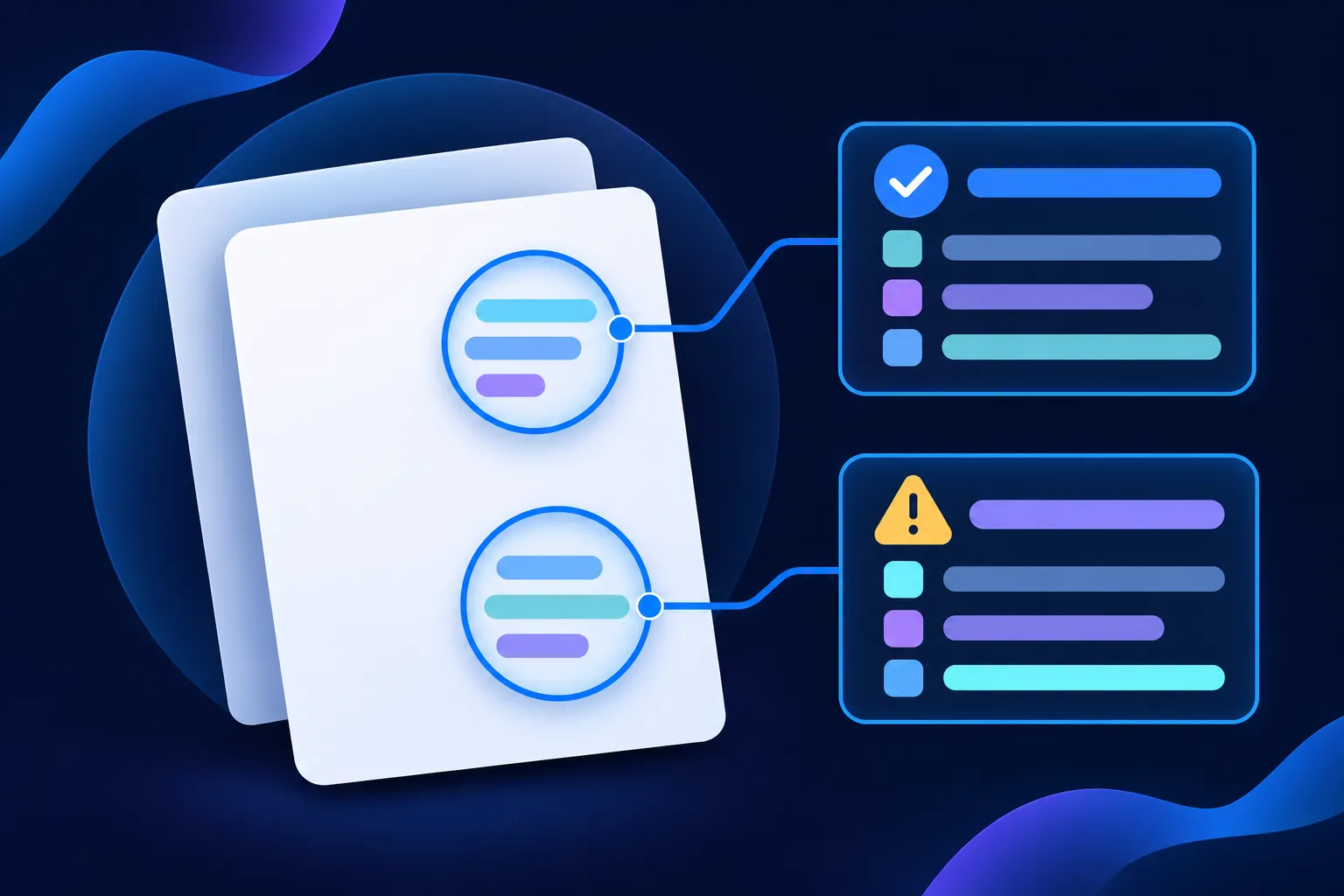
After Google crawls the page, open the enhancement reports. According to Google's Search Console monitoring guidance (a 2019 post, so the interface may look different today), these reports group detected structured-data issues across crawled pages. They separate valid items, warnings and errors, list the affected URLs, and offer Validate Fix once you change something. They exist only for supported Google Search features, so a page using a type without a Google feature will not appear in one.
Recheck after any template, plugin, theme or CMS change. WordPress, Shopify, Wix, Squarespace and Webflow setups can produce duplicate or altered JSON-LD. Wix documents manual JSON-LD insertion and says its page markup must be JSON-LD, and Squarespace explains its structured-data warnings and notes they may not prevent indexing or rich-result eligibility. Use each platform's current controls, then test the rendered public page. The guide on duplicate schema markup covers finding and removing copies.
Check Bing and Yandex with their own tools
A result in Google's tools does not predict a result in another engine, so test where that traffic matters.
Bing supports Schema.org in JSON-LD, Microdata, RDFa, Microformats and Open Graph (Bing's structured data guidance). In Bing Webmaster Tools, URL Inspection includes a Markup card that recognizes JSON-LD, Microdata, Microformats and Open Graph and lists markup issues on the inspected page. It does not validate ordinary HTML.
Yandex Webmaster provides a structured data validator for Schema.org, Microformats, Open Graph, Microdata and RDFa. Yandex says the validator also checks requirements for Yandex services. Its Schema.org guidance says those services support only selected types, including products, recipes, films, questions and answers, organizations, images and videos, and that enhanced snippets may require indexing and moderation first.
DuckDuckGo is a separate search product whose web results may draw on upstream indexes, including Bing. Validate the page with Bing, then look at DuckDuckGo's actual results separately instead of assuming one predicts the other.
Make the page reachable for AI search
To make a page eligible for ChatGPT search, allow OAI-SearchBot (crawler documentation, ChatGPT search help article). Copilot web search uses Bing results for grounding (Copilot web search documentation), so check the page in Bing Webmaster Tools. Perplexity's crawler announcement documents the PerplexityBot and Perplexity-User controls.
Publish accurate, visible, crawlable content, and make sure your markup describes what is on the page. See whether AI uses schema markup.
JSON-LD and JSON Schema are different things
Because both names include "JSON", people searching for one often land on results for the other. JSON-LD stands for JSON for Linked Data. It gives the terms in a JSON document linked-data meaning through a context, which is what the @context line in your markup does. JSON Schema is a separate format for describing and validating the shape of JSON documents, such as which fields an API response must contain.
For marking up a page with Schema.org, JSON-LD is the format to use, and it is the format used in every example here. If a tool or tutorial talks about validating the fields of an API response or a configuration file, it is describing JSON Schema.
What a passing result does and does not tell you
A clean Rich Results Test result tells you Google can read the markup for a supported feature and that the page may be eligible. A clean Schema Markup Validator result tells you the markup is interpretable as Schema.org. Neither tells you the page has been crawled or indexed, that it will rank, that a rich result will appear, or that an AI system will cite it. Google's guidelines say correct markup does not guarantee a display.
Supported features also change. Google's documentation updates page says the FAQ rich result stopped appearing in Google Search on May 7, 2026, and that the FAQ documentation was removed in June 2026. FAQPage remains a Schema.org type, so the Schema Markup Validator can still validate it, but it should not be treated as a current Google display opportunity. Check that page before relying on any Google feature.
If your markup passes both tools and nothing appears, the guide on why rich results are not showing covers the causes. To see what markup an existing page already carries, follow the guide on how to check whether a website has schema markup.
Questions people ask
What is the difference between the Rich Results Test and the Schema Markup Validator?
The Rich Results Test checks markup against Google Search features Google currently supports and reports eligibility. The Schema Markup Validator checks Schema.org types and properties without Google-specific feature warnings. Run the validator for vocabulary questions and the Rich Results Test for Google feature questions.
Can the Schema Markup Validator tell me whether Google will show a rich result?
No. It checks Schema.org markup without Google-specific feature warnings, so it does not report Google feature eligibility. Even the Rich Results Test reports eligibility rather than display, because Google decides separately whether to show a result.
Are warnings blocking?
Usually not. A warning typically means the item can still be parsed or remain eligible, though more information would make it more complete. Fix errors first, then add the recommended properties that are true and visible on the page.
What happened to the Structured Data Testing Tool?
Google's December 2020 announcement said it would be refocused and moved to Schema.org, and no longer check Google Search rich-result types. Google's documentation now directs you to the Schema Markup Validator for generic validation and the Rich Results Test for Google features.
Are FAQ rich results still shown in Google Search?
Google's documentation updates page says the FAQ rich result stopped appearing in Google Search on May 7, 2026. The FAQ documentation was removed in June 2026. FAQPage itself remains a valid Schema.org type.