


To see whether a page has schema markup, open it, view its HTML source and search for application/ld+json. That string finds JSON-LD, the format most sites use. If it returns nothing, search for itemscope, itemtype, itemprop, typeof and vocab, the attributes that mark Microdata and RDFa.
Then compare what the markup says with what a visitor sees. The headline, author, date, image and publisher in the code should match the page. The method works on a site you run and on a competitor's page, on WordPress, Shopify, Wix, Squarespace, Webflow and hand-built sites alike.
Check in this order, fastest to most complete: the page source, the rendered page in Developer Tools, a URL test with Google, Schema.org and Bing tools, and for many pages, Search Console, Bing Webmaster Tools and a crawler. These checks show what is on the page. They do not show whether a search engine has indexed or used it.
Know which formats to look for
Schema markup is structured data that describes the things on a page, such as an article, product, organization, person, event or recipe, using the Schema.org vocabulary. It comes in three formats. JSON-LD sits in a script element, Microdata adds attributes such as itemscope, itemtype and itemprop to visible HTML, and RDFa uses attributes such as vocab, typeof and property.
Google says it supports all three formats and generally recommends JSON-LD (Google's structured data introduction). Bing documents support for Schema.org in JSON-LD and Microdata, as well as Microformats, RDFa and Open Graph (Bing's structured data guidance). So, a page may use more than one format, and a full check looks for all of them. The JSON-LD syntax itself is defined by the W3C JSON-LD 1.1 specification.
One term trips people up when they search for this topic. JSON Schema is a separate standard for describing and validating the structure of JSON documents. It is not the same as Schema.org, and a JSON Schema file on a site does not describe the page to a search engine.
Search the page source
Open the page in your browser and press Ctrl+U on Windows or Option+Command+U on macOS. The browser opens the HTML the server sent, before any script changes it. Press Ctrl+F (or Command+F on macOS) and search for each of these terms in turn.
application/ld+json
schema.org
itemscope
itemtype
itemprop
typeof
vocab
A JSON-LD block looks like a script element with the type application/ld+json. The content inside it is the markup. Your own page will contain real values; this short pattern only shows the shape.
<script type="application/ld+json">
  {
    "@context": "https://schema.org",
    "@type": "Article"
  }
</script>
Microdata appears as attributes wrapped around visible content instead of a separate script. In the next example, the itemtype value names the type and itemprop marks which text is the headline. If your search finds itemscope and itemtype attributes like these, the page uses Microdata, and RDFa looks similar with vocab, typeof and property.
<article itemscope itemtype="https://schema.org/Article">
  <h1 itemprop="headline">Example article</h1>
</article>
Finding the string schema.org alone does not prove a page has markup, because it can appear in a link or a comment. Look for the script type or the attributes, then read what they describe. If none of the terms appear in the source, the markup may still be added after the page loads, which the next section covers.
Inspect the rendered page with Developer Tools
Source markup is the HTML the server returns before browser JavaScript runs. Rendered markup is the page structure after scripts have run and updated the document. A theme, plugin, tag manager or CMS feature can add JSON-LD during rendering, so it appears in the second version and not the first. Google says it can process JSON-LD injected into the rendered page when it can render that page, and it also says that not every crawler or search service executes JavaScript the same way (Google's JavaScript SEO basics).
Open Developer Tools (usually F12, or right-click and choose Inspect), switch to the Elements panel and search the DOM for the same terms. The Elements panel shows the document as it stands now, scripts included. If a term appears there and not in the page source, scripts added it.
The Console is quicker for JSON-LD. Paste this line and press Enter to list the text of every JSON-LD block currently in the page.
[...document.querySelectorAll('script[type="application/ld+json"]')]
  .map(element => element.textContent)
An empty list means the current page has no JSON-LD script elements. For Microdata and RDFa, each of these lines returns a count of matching elements, and a count of zero means none were found.
document.querySelectorAll('[itemscope][itemtype]').length
document.querySelectorAll('[typeof], [vocab][property]').length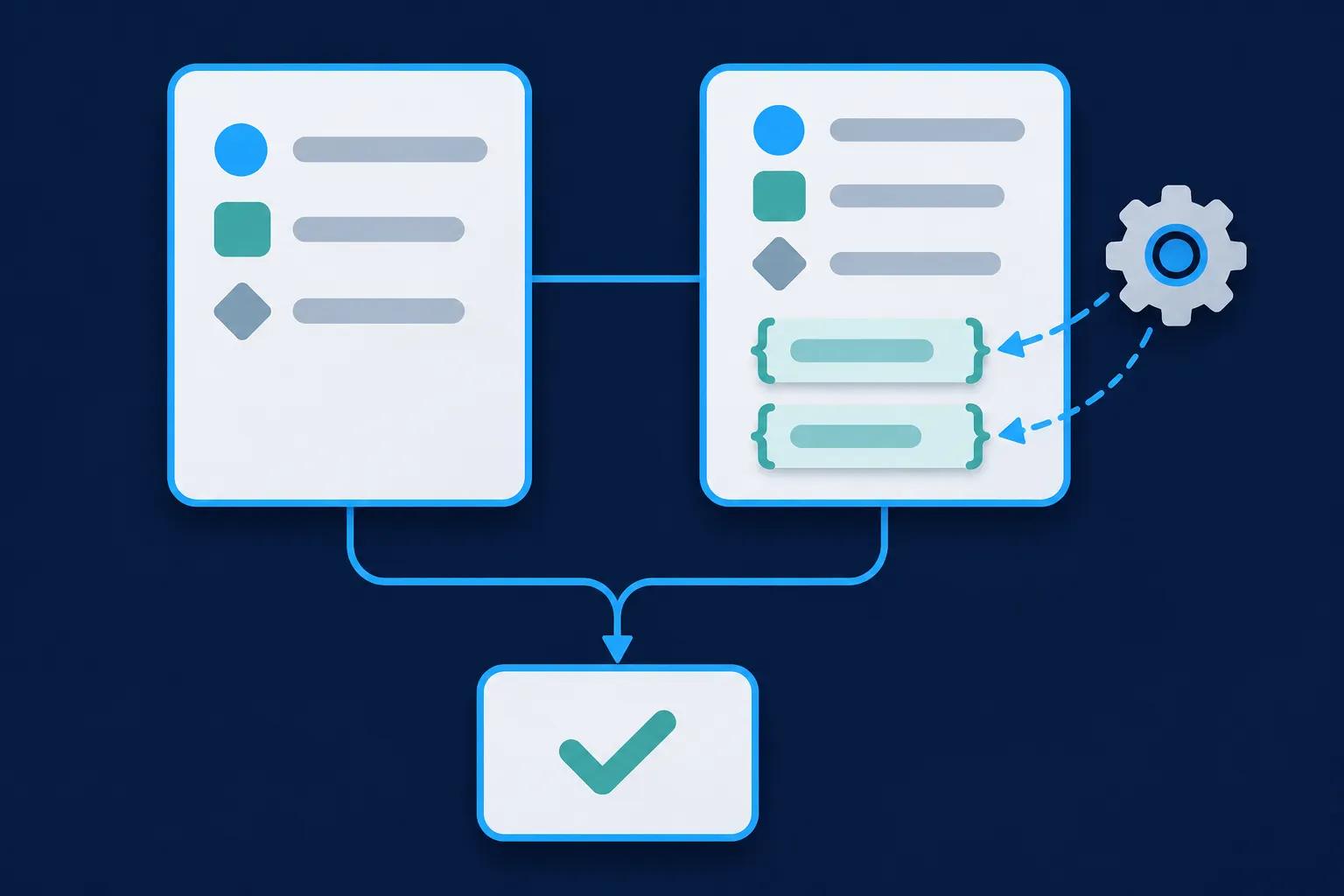
These snippets identify markup present in the current DOM. They do not prove that a search engine has indexed or used it. If markup shows up only in the rendered page, confirm that the scripts and data that produce it are available to the crawler you care about. Rendered markup also has to describe content visitors can see; hidden, inaccurate or unrelated information does not belong in it.
Test the URL with Google, Schema.org and Bing tools
Each tool answers a different question, so pick the one that matches yours. Google's Rich Results Test checks a public URL or pasted code for eligibility for Google-supported rich result features, and Google's help page says it can show the rendered HTML it tested. The Schema Markup Validator checks Schema.org markup without applying Google's feature requirements. For a detailed comparison of the two, read Rich Results Test vs Schema Markup Validator.
Bing has its own view. After you verify a site in Bing Webmaster Tools, URL Inspection has a Markup card that can display the JSON-LD, Microdata, Microformats and Open Graph that Bing detects, and a live URL view that shows what Bingbot receives. DuckDuckGo says it keeps its own crawler and indexes while sourcing most traditional links and images largely from Bing (DuckDuckGo Help), which is one more reason to look at Bing's view. For Apple, the App Search API Validation Tool checks the data Applebot can extract for Apple search experiences.
Schema Nova has two free tools for this step. The Schema Nova schema checker takes a page URL and reads the structured data in the HTML it retrieves from that address, so use the Console method above for markup that scripts add later. For code you have copied from a page, the Schema Nova schema validator tests it directly.
Browser extensions can also list the markup on a page. If you use one, install it from an official browser store listing, review the publisher and the permissions it asks for, and treat it as a convenience. Confirm anything important with the relevant provider's own validator or inspection tool.
Read what the markup says
Once you have a block of JSON-LD in front of you, read it as a description of things and how they relate. Each part has a job.
@contextnames the vocabulary, usuallyhttps://schema.org.@typenames the Schema.org type, such asBlogPosting.@idgives an entity a stable identifier that other entities can reference.- Properties such as
headline,author,datePublished,imageandpublisherdescribe the entity. - Nested objects describe related entities, and arrays hold several values.
@graphgroups several entities in one document, and several script blocks can each describe a related entity.
Here is a complete, fictional BlogPosting that shows those parts together. Every URL and name uses the reserved domain example.com or fictional names. If you copy it for your own page, replace each value with one that matches your page.
{
  "@context": "https://schema.org",
  "@type": "BlogPosting",
  "@id": "https://example.com/blog/example-guide/#article",
  "url": "https://example.com/blog/example-guide/",
  "headline": "A Fictional Guide to Example Data",
  "description": "A fictional explanation of example data for demonstration purposes.",
  "image": [
    "https://example.com/images/example-guide-1x1.jpg",
    "https://example.com/images/example-guide-4x3.jpg",
    "https://example.com/images/example-guide-16x9.jpg"
  ],
  "datePublished": "2026-10-01T09:00:00-05:00",
  "dateModified": "2026-10-08T14:30:00-05:00",
  "author": {
    "@type": "Person",
    "@id": "https://example.com/about/alex-example/#person",
    "name": "Alex Example",
    "url": "https://example.com/about/alex-example/"
  },
  "publisher": {
    "@type": "Organization",
    "@id": "https://example.com/#organization",
    "name": "Example Publishing",
    "url": "https://example.com/",
    "logo": {
      "@type": "ImageObject",
      "url": "https://example.com/images/example-publishing-logo.png"
    }
  },
  "mainEntityOfPage": {
    "@type": "WebPage",
    "@id": "https://example.com/blog/example-guide/"
  },
  "about": {
    "@type": "Thing",
    "name": "Example data"
  }
}
This markup says the page describes a blog post titled "A Fictional Guide to Example Data," written by a person named Alex Example and published by an organization named Example Publishing. By itself it does not prove that Google will show an article enhancement.
Compare each important value with the visible page. The headline should match the page title, the author should be identified on the page, the dates should be visible and accurate, the image should belong to the page, and the publisher name should match the site.
Look for duplicate or contradictory entities too, and for ratings or reviews that are not genuine and visible on the page. A theme and a plugin can each describe the same article, and duplicate schema markup from plugins and themes covers how to find and remove the extra copy.
Two layers of rules apply to what you just read. Schema.org defines the vocabulary, so Article, BlogPosting, Person and Organization list the properties that exist. Google's feature documentation defines which properties and policies matter for a specific Google Search feature. Google's Article documentation lists Article, NewsArticle and BlogPosting as compatible types and currently states that there are no required properties, only recommended ones. When a validator flags a missing field, fixing missing field warnings walks through the next step.
Check many pages with reports and crawlers
Page-level inspection answers questions about one URL. For a whole site, add reports. In Google Search Console, open the relevant enhancement or rich result report after Google has crawled your pages, and use URL Inspection to examine one address and test the live page. Search Console can show structured data issues it detects, but its reports cover Google's systems and supported features, not every Schema.org type.
Look again after you publish structured data for the first time, change a theme, template, plugin or CMS setting, change how JavaScript renders, migrate a domain or platform, or notice a drop in valid items or rich result appearances.
Bing Webmaster Tools works the same way. Verify the site, then use URL Inspection for individual addresses and the Markup card for what Bing detected.
A crawler can collect the URLs that contain JSON-LD, the Schema.org types in use, missing or malformed JSON-LD, duplicate entities, inconsistent canonical URLs and pages whose markup differs from the rest. It reports only what it can fetch and parse, though. JavaScript rendering, robots rules, logins, rate limits and templates all change the result. Sample each important template, then open a few representative URLs and inspect them by hand.
Check the markup your platform adds
Many platforms write markup for you, so inspect the published page before you assume a setting is active or add another block. Squarespace says it automatically generates BlogPosting, Event, LocalBusiness, Organization, Product and WebSite markup (Squarespace Help). Wix supports manual JSON-LD and automatic or AI-generated markup for some page types (Wix Help Center).
Webflow provides a Schema markup field and custom code options, in a help article updated January 27, 2026 (Webflow Help Center). The Next.js documentation, last updated February 27, 2026, recommends rendering JSON-LD in a script tag in layout.js or page.js (Next.js JSON-LD guide).
WordPress, Shopify and HubSpot sites may get markup from a theme, a platform feature or a plugin, and the combination differs from one install to the next. The published page is the only reliable record of what is live. Platform-specific installation steps are in the guides for WordPress, Shopify, Wix, Squarespace, Webflow, HubSpot and Next.js and React.
Follow the checks in order
When you are not sure where to start, run the checks in this order and stop as soon as you have the answer you need. Each step adds a layer that the previous one cannot show.
Make the markup readable for Bing and AI search
Bing's Markup card, described above, shows the JSON-LD, Microdata and RDFa it detected, so use it when you want to confirm Bing sees what you found. Yandex does not support every Schema.org type, so check the type you use in Yandex's documentation.
For AI search, access matters most. OpenAI says OAI-SearchBot is used to surface websites in ChatGPT search features and that allowing or disallowing it affects ChatGPT search visibility (OpenAI crawler overview). Keep important information visible, accurate and crawlable in ordinary HTML, and do not add markup that is invisible or inconsistent with the page. For more, see whether AI systems use schema markup.
Know what a passing result does and does not mean
Valid Schema.org markup can sit on a page that is not eligible for a Google rich result. Google's general structured data guidelines say markup enables eligibility but does not guarantee a particular display, ranking, traffic or citation (Google's general guidelines). A positive result in the Schema Markup Validator likewise says nothing about whether Google, Bing, Apple, Yandex or an AI system will show anything.
Google's feature support also changes, so the current feature page decides what to add. Google's documentation updates page says FAQ rich results stopped appearing on May 7, 2026, and that the FAQ documentation was removed in June 2026. FAQPage remains a valid Schema.org type. Google's earlier HowTo and FAQ changes retired HowTo rich results, and its sitelinks search box announcement set the retirement date for that feature at November 21, 2024.
If your markup is valid and Google shows nothing, read why schema rich results are not showing. For a full quality pass on what you have, use the schema markup best practices checklist, and for a direct page-level look at any URL, run it through the Schema Nova schema checker.
Questions people ask
How do I check if a website has schema markup?
View the page source with Ctrl+U or Option+Command+U and search for application/ld+json, itemscope, itemtype, itemprop, typeof and vocab. Then inspect the rendered DOM in Developer Tools and test the URL with the Rich Results Test and the Schema Markup Validator.
Can I see schema markup on a site I do not own?
Yes. Anyone can view a public page's source, inspect it in the browser and test its URL in Google's Rich Results Test or the Schema Markup Validator. You can read what a competitor's page declares, though you can only change markup on pages you control.
What is the difference between the Rich Results Test and the Schema Markup Validator?
The Rich Results Test checks eligibility for Google-supported rich result features, so it reports on the types Google uses. The Schema Markup Validator checks Schema.org markup without Google's feature rules, so it can read types that have no Google feature.
Why does the page source differ from the Elements panel?
The source is the HTML the server returned. The Elements panel shows the page after scripts have run, so JSON-LD added by a theme, plugin or tag manager appears there and may be missing from the source.
Does valid markup guarantee a rich result or an AI citation?
No. Google's guidelines say structured data enables eligibility but does not guarantee display, ranking, traffic or citation, and Bing's guidelines say it does not guarantee visibility or grounding. Validity describes the markup, and display is each provider's decision.
What is the difference between JSON-LD and JSON Schema?
JSON-LD is a format for embedding linked data, often Schema.org markup, in a page. JSON Schema is a separate standard for describing and validating the structure of JSON documents, and it does not describe page content for search engines.