


You can add schema markup in WordPress in two ways. Configure an SEO plugin that already writes schema for your posts and pages, or print a small JSON-LD block from a child theme or site-specific plugin for a type the plugin does not cover. Either way, each main entity on a page, such as Article or BreadcrumbList, should have exactly one generator.
Start by looking at what the page already outputs. A theme, an SEO plugin, a page builder or a shop extension can each print JSON-LD, and a second copy of the same entity is an easy way for a new snippet to cause trouble.
The order is short: inspect the rendered source, choose one generator, configure the plugin or add the code, clear caches, then test the page where it appears.
Choose one generator for each entity
Schema.org supplies the vocabulary, meaning the types and properties you write, and JSON-LD (W3C JSON-LD 1.1) is the format that carries them. Google says it recommends JSON-LD when your setup allows it, and Bing supports JSON-LD alongside other formats.
A plugin is the practical choice for the common entities. It can usually handle site-wide and post-level output, such as the organization, the website, the page and the article, and it updates when you edit a post. Manual JSON-LD fits two situations: the plugin has no setting for a type you need, or a developer wants exact control over one template.
Both routes can coexist on one site, provided they never describe the same entity. A plugin might own Organization, WebSite and Article, while a small function owns a single type the plugin lacks. What you want to avoid is two systems that each describe the article on the same URL.
Markup must describe content that visitors can see on the page. It can help systems understand a page and may support enhanced displays, but it does not guarantee rankings, rich results, traffic or AI citations.
See what your WordPress site already outputs
WordPress core gives themes and plugins the wp_head() hook, which prints scripts and data into the document head. Core does not use that hook to write a general, site-wide Schema.org graph for ordinary posts and pages. Whatever structured data a typical page carries comes from the active theme, a plugin or custom code, and the exact output varies by WordPress version, theme and configuration.
That variation is the reason to read your own pages before changing anything.

Read the rendered source
Open the live page in a browser, view the page source, and search for application/ld+json. Each match is one script block. Read the @type of each block, and search the whole source for the entity you plan to add, such as Article, Organization or BreadcrumbList. Use the rendered page, not the template file, because plugins, builders and caches change what actually reaches the browser.
Do this for one page of each kind you care about: the home page, a post, a page and a product if you sell something. Blocks often differ between them.
Decide who owns each block
Once you have a list of blocks, find the generator behind each one. Deactivating a plugin on a staging copy, or reading the plugin's schema settings, usually answers the question. The aim is one owner per entity:
OrganizationandWebSite: the SEO plugin, or one site-wide custom implementation.WebPage: the SEO plugin.ArticleorBlogPosting: the SEO plugin, or a content-specific custom function.BreadcrumbList: the theme or the SEO plugin, but not both.Product: the ecommerce system, or one ecommerce-aware SEO plugin.
If two generators each print one of these, pick the owner and turn the other off using that generator's own documentation. Do not paste a third block over the top.
Configure schema with an SEO plugin
The plugin route needs no code. Install one SEO plugin, set the schema options for each content type, and let it print the markup. Three common plugins work like this, based on their own documentation.
Yoast SEO builds a connected Schema graph. Its documented base output commonly includes Organization, WebSite and WebPage, and its content type settings give posts an Article and pages a WebPage by default. Yoast also warns that changing those defaults can cause errors or unexpected behavior, so change one setting at a time and retest. For adding to its graph from a theme or plugin, Yoast publishes an implementation guide.
Rank Math lets you select a default schema type for posts and other content types under its Titles and Meta settings, then edit the schema for a single post in the post editor.
All in One SEO has a Schema tab. Its custom Schema documentation, updated August 14, 2026, describes a JSON-LD editor among its Pro features, so check which features your plan includes before planning around it.
Menu names and paths change between releases. After you save any of these settings, clear caches and read the rendered source again, because the source is the only place that shows what visitors and crawlers actually receive. If you are comparing the plugins to decide which to install, keep the decision to a single plugin and let it own the entities listed above.
Add JSON-LD with a child theme or site-specific plugin
Use code when the plugin cannot produce the type you need, or when you want one template to carry exactly the values you choose. The safest place for that code is a small site-specific plugin, which survives theme changes, or a child theme's functions.php. Do not edit a parent theme, because an update can overwrite the change.
The function below hooks into wp_head and prints BlogPosting markup only when the visitor is on one post. It uses the fictional slug example-guide, so replace that slug, and every value in the array, with the values that appear on your own page. On a real site, WordPress functions such as get_the_title(), get_permalink() and get_the_date() can supply the headline, URL and dates instead of fixed text.
<?php
function schemanova_example_article_schema() {
    if ( ! is_single( 'example-guide' ) ) {
        return;
    }

    $schema = array(
        '@context'         => 'https://schema.org',
        '@type'            => 'BlogPosting',
        '@id'              => 'https://example.com/example-guide/#article',
        'mainEntityOfPage' => array(
            '@type' => 'WebPage',
            '@id'   => 'https://example.com/example-guide/'
        ),
        'headline'         => 'Example Guide for Website Owners',
        'description'      => 'A fictional example article description.',
        'image'            => array(
            'https://example.com/images/example-guide-16x9.jpg',
            'https://example.com/images/example-guide-4x3.jpg',
            'https://example.com/images/example-guide-1x1.jpg'
        ),
        'author'           => array(
            '@type' => 'Organization',
            'name'  => 'Example Publishing Group',
            'url'   => 'https://example.com/about/'
        ),
        'publisher'        => array(
            '@type' => 'Organization',
            'name'  => 'Example Publishing Group',
            'url'   => 'https://example.com/',
            'logo'  => array(
                '@type' => 'ImageObject',
                'url'   => 'https://example.com/images/example-logo.png'
            )
        ),
        'datePublished'    => '2026-01-15T09:00:00-06:00',
        'dateModified'     => '2026-02-01T10:30:00-06:00',
        'inLanguage'       => 'en-US',
        'url'              => 'https://example.com/example-guide/'
    );

    echo '<script type="application/ld+json">';
    echo wp_json_encode(
        $schema,
        JSON_UNESCAPED_SLASHES | JSON_UNESCAPED_UNICODE | JSON_HEX_TAG
    );
    echo '</script>';
}
add_action( 'wp_head', 'schemanova_example_article_schema' );
Three details keep this safe. The is_single() test limits output to the intended post, so the function stays silent everywhere else. wp_json_encode() builds valid JSON from the array, which avoids hand-typed quotes and commas, and the JSON_HEX_TAG flag stops a stray closing script tag in a value from ending the block early. Finally, the example is for teaching only. If your SEO plugin already prints an Article for that post, do not run this function there; use it for a type the plugin lacks.
A block theme keeps functions.php as an optional file next to its HTML templates, as the WordPress theme structure documentation describes. Custom PHP on a template-based site still belongs in a child theme or a site-specific plugin. Keep a copy of the previous code before each change, so a mistake costs you a minute and not an afternoon.
Write the values for Article, BreadcrumbList and Organization
Google's feature documentation sets which properties matter for each type, and those requirements are separate from Schema.org validity. Google lists no required properties for its Article feature and recommends headline, image, author, datePublished and dateModified where they apply. It documents Article, NewsArticle and BlogPosting for that feature.
BreadcrumbList is stricter. Google's breadcrumb documentation requires itemListElement, with each crumb written as a ListItem that carries position and name, and the list needs at least two items. The final item, which is the current page, may leave out item. Replace the names and URLs below with the real trail shown on your page.
{
  "@context": "https://schema.org",
  "@type": "BreadcrumbList",
  "@id": "https://example.com/example-guide/#breadcrumb",
  "itemListElement": [
    {
      "@type": "ListItem",
      "position": 1,
      "name": "Guides",
      "item": "https://example.com/guides/"
    },
    {
      "@type": "ListItem",
      "position": 2,
      "name": "Example Guide for Website Owners"
    }
  ]
}
For the organization, Google documents Organization markup for a home page or a page that describes the organization. It lists no required properties and recommends the applicable ones: name, url, logo, sameAs, contact details and address. Include only facts the page itself states.
{
  "@context": "https://schema.org",
  "@type": "Organization",
  "@id": "https://example.com/#organization",
  "name": "Example Publishing Group",
  "url": "https://example.com/",
  "logo": "https://example.com/images/example-logo.png",
  "description": "A fictional publishing organization.",
  "sameAs": [
    "https://example.net/example-publishing-group",
    "https://example.org/example-publishing-group"
  ],
  "contactPoint": {
    "@type": "ContactPoint",
    "contactType": "customer service",
    "email": "contact@example.com",
    "telephone": "+1-555-010-0100"
  }
}
If you would rather build these blocks than type them, the Article schema generator produces valid JSON-LD for an article from the details you enter. The organization schema generator and the breadcrumb schema generator build the other two examples the same way. Paste the result into a site-specific plugin function only after confirming that no other generator on the site already covers that entity.
Prevent and fix duplicate markup
Two systems can each print valid markup and still leave a page with competing descriptions of the same entity. Prevention is a habit: before you add manual JSON-LD, view the rendered source, search for application/ld+json, search for the type you plan to add, and identify the generator behind each block. Do not add a second Article merely because the first one looks incomplete. Extend the existing graph where the plugin offers an integration route, as Yoast does, or turn off the overlapping output only where that generator's documentation explains how.
A connected graph can contain several related entities, and that is fine. The entities need stable identifiers and clear relationships, so reuse the same @id when two blocks refer to one thing, for example https://example.com/#organization for the publisher.
If you are repairing a page that already has duplicates, the same inspection tells you which generator to switch off. To see how those blocks read side by side, run the live URL through the Schema Nova schema checker and compare the types it reports. When a test or Search Console report lists missing or flagged fields rather than duplicates, the guide on fixing missing field warnings in Search Console covers each warning and its correction.
Structured data can also fail for ordinary reasons: a cache serving an older page, a template that prints the block only for logged-in users, a theme update that restored a deleted block, or a plugin update that changed its defaults. Each one shows up the same way, in the rendered source of the live URL.
Test the rendered page
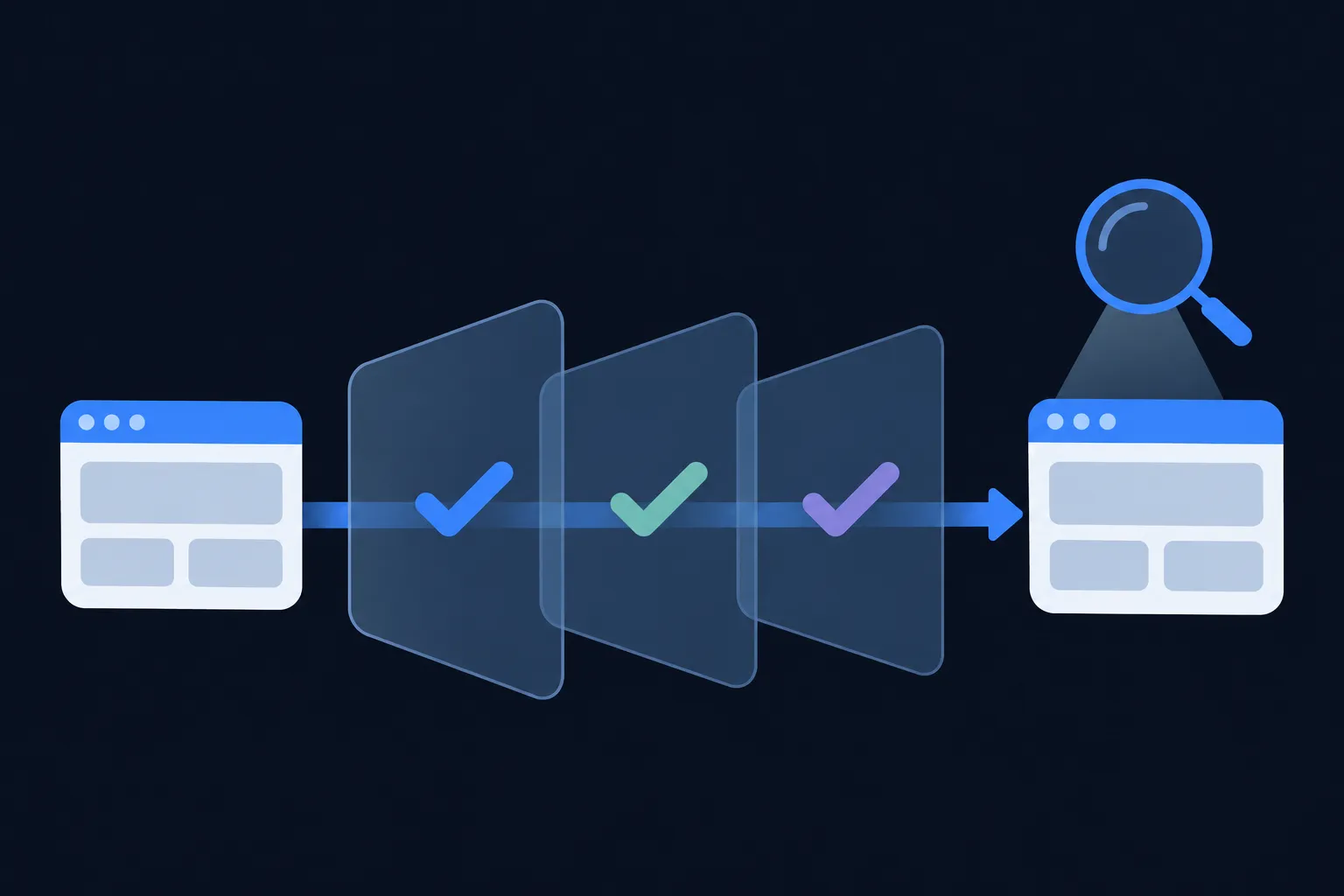
Each test examines a different layer, so run them in order and keep the live URL in front of you. After every change, purge page caches first, or you will test a stale copy.
Start with the rendered source and confirm the block you expect appears once. Then run the URL through Google's Rich Results Test, which lists the Google rich result types it detects along with errors and warnings. Next, use the Schema Markup Validator, which checks general Schema.org vocabulary and does not apply Google-specific feature rules, as Google's structured data testing documentation explains. For a quick syntax and vocabulary read, the Schema Nova schema validator accepts pasted code.
After deployment, use URL Inspection in Search Console to see how Google retrieves the page. Google's Article documentation says to confirm the page can be crawled, carries no noindex, is not blocked by robots.txt or a login, and has had time to be recrawled.
Bing and Yandex have their own checks. Bing Webmaster Tools offers URL Inspection with a Markup card that recognizes JSON-LD, Microdata, Microformats and Open Graph. Yandex Webmaster provides a structured data validator; Yandex says it checks whether markup is recognized and also evaluates the requirements of its own services, and that it does not support every Schema.org type.
A passing result has limits. Google's general structured data guidelines say rich results are not guaranteed even when markup passes testing. Yandex likewise says a successful validation does not itself produce a snippet; the page must also be indexed and moderated. Repeat the whole sequence after theme changes, plugin updates, migrations and URL changes.
Make the markup readable for Bing and AI search
Bing supports Schema.org in JSON-LD and Microdata, so the same JSON-LD block serves Google and Bing. In its structured data documentation, Bing says annotations do not guarantee a visually rich result. In its webmaster guidelines, Bing says accurate structured data may support clearer grounding in Bing and Copilot. Microsoft documents that Copilot web search sends queries to Bing.
To let ChatGPT and Perplexity reach your pages, allow OAI-SearchBot and PerplexityBot in robots.txt (OpenAI crawler documentation, Perplexity crawler documentation). Google says AI Overviews and AI Mode need no special schema beyond normal Search eligibility (AI features documentation). Keep pages crawlable, put important information in visible HTML, and publish accurate markup. See whether AI systems use schema markup for the full comparison.
Questions people ask
Does WordPress add schema markup automatically?
WordPress core exposes the wp_head() hook but does not provide a general site-wide Schema.org graph for ordinary posts and pages. Any schema on a typical page comes from the theme, a plugin or custom code, so the rendered source of your own page is the answer for your site.
Can I add JSON-LD without a plugin?
Yes. Print a script of type application/ld+json from a function hooked to wp_head, placed in a child theme or a site-specific plugin, and limit it to the page it describes. Use values that appear on the page, and test after clearing caches.
Can two plugins create duplicate schema markup?
They can. A theme, a page builder, an event or recipe plugin and an SEO plugin may each describe the same entity. Find the generator behind every block in the rendered source, then keep one owner per entity.
The Rich Results Test passes, but no rich result appears. What now?
A passing test shows the markup is readable for those features; it does not promise a display. Confirm the URL is indexable in Search Console URL Inspection, allow time for recrawling, and remember that Google decides separately whether to show a feature.
Is FAQ schema still useful?
Google says FAQ rich results stopped appearing in Search on May 7, 2026. The FAQPage type remains valid Schema.org vocabulary, and other consumers may read it. Keep it only when it matches questions and answers that visitors can see on the page.