


HubSpot accepts JSON-LD in three places, and the right one depends on what the markup describes. Use the Head HTML box on a single page or post for markup that belongs to that page alone. Use Site Header HTML for entities that describe the whole site, such as your organization. Use a coded template with HubL when every blog post should carry its own title, URL, image and dates.
Before you add anything, open one published page and one published post and view their source. Your theme may already print some JSON-LD, and a second description of the same item leaves you with duplicates to reconcile.
Choose where the JSON-LD goes in HubSpot
HubSpot documents head-code options at the level of a single page, a blog post and a whole domain (HubSpot code snippets documentation, last updated February 2026). Those levels line up with the three kinds of markup most sites need. Google's general structured data guidelines recommend JSON-LD, so all three routes below use it.
- One page or post. Open Content, then Website Pages, Landing Pages or Blog, choose the item, and go to Settings, then Advanced, then Head HTML.
- The whole site. Go to Settings, then Content, then Pages, and use Site Header HTML.
- Every post from one template. Put the script inside the
<head>of a coded HTML and HubL template.
Match the route to the entity. Stable facts about the organization or the website belong in Site Header HTML. Anything that describes one page, such as an Article, BlogPosting, Product or Event, belongs on that page or in the template that builds it.
HubSpot says permissions differ by scope. Edit and Publish permission covers individual content, while Website Settings permission covers domain-wide code. The documentation also says head and footer options vary by subscription and content type, and that blog posts support Head HTML but not Footer HTML. Menu labels change over time, so compare what you see in your portal with the HubSpot page before you start.
Check what your theme already outputs
What a HubSpot theme prints depends on the theme itself, the blog settings and your subscription. Read your own published HTML instead of assuming. Open one published page and one published post, view the page source, and search for application/ld+json. Note each block's @type and any @id.

If a block already describes the same organization or article, edit that source where you can, or add only the properties that are missing and give them a matching @id. Adding a second complete Organization or BlogPosting through another route creates two competing descriptions of one item. Duplicate nodes are acceptable only when you connect them on purpose with identical @id values, which is the pattern covered in the JSON-LD graph guide.
The same check tells you which entities you can skip. If the theme already prints a correct breadcrumb trail, leave it alone. If it prints nothing, you have a clear gap to fill with one of the routes above.
Add JSON-LD to one page or post with Head HTML
Head HTML suits a page whose markup is written once and rarely changes, such as a single landing page or one post that needs its own breadcrumb trail. Open the item in the editor, go to Settings, then Advanced, and paste a complete script element into Head HTML. Paste the tags as well as the JSON, because the box expects HTML rather than a bare object.
The example below is a BreadcrumbList for a fictional post. Google's breadcrumb documentation (updated September 2026) requires itemListElement with at least two ListItem objects, and each item needs a position and a name. Use item for the URL of each step. Replace the names and URLs with the real trail shown on the page, and keep the order the same as the visible breadcrumb links.
<script type="application/ld+json">
{
  "@context": "https://schema.org",
  "@type": "BreadcrumbList",
  "@id": "https://example.com/blog/example-post/#breadcrumb",
  "itemListElement": [
    {
      "@type": "ListItem",
      "position": 1,
      "name": "Blog",
      "item": "https://example.com/blog/"
    },
    {
      "@type": "ListItem",
      "position": 2,
      "name": "Example Post",
      "item": "https://example.com/blog/example-post/"
    }
  ]
}
</script>
Publish the item, then check the live URL rather than the editor preview. For a deeper look at the properties, the breadcrumb schema guide and the breadcrumb generator cover the details.
Add site-wide Organization markup
An organization is the same on every page, so it belongs in Site Header HTML. Google says the Organization feature has no required properties (documentation updated September 2026). Add the ones that apply to you, such as name, url, logo, sameAs, address, telephone, email and description, and leave out any you cannot state truthfully.
The fictional example below gives the organization a stable @id. Replace the name, the URLs and the sameAs profile with your own, and keep the @id unchanged wherever you refer to the organization later. Page-level markup can then point at it, so there's no need to repeat the full object on every page.
<script type="application/ld+json">
{
  "@context": "https://schema.org",
  "@type": "Organization",
  "@id": "https://example.com/#organization",
  "name": "Example Publishing",
  "url": "https://example.com/",
  "logo": {
    "@type": "ImageObject",
    "url": "https://example.com/images/example-logo.png"
  },
  "sameAs": [
    "https://www.example.org/example-publishing"
  ]
}
</script>
HubSpot's documentation notes that domain-wide code can reach every page on the domain you select, so keep page-specific entities out of this box. If the theme already prints an organization on the home page, update that markup rather than stacking this block on top. The Organization schema guide explains each property, and the Organization generator builds the object for you. If you want to know whether it should repeat on every page, the guide on Organization markup across pages answers that directly.
Match each BlogPosting property to the post
Schema.org defines BlogPosting as a subtype of Article. Google's Article documentation (updated September 2026) supports Article, NewsArticle and BlogPosting, and lists no required properties for the feature. It recommends author, author.name, author.url, datePublished, dateModified, headline and image where they apply.
"Recommended" here is Google's label for its own Search feature. It does not mean Bing, Yandex, Apple or an AI system reads the same fields the same way, and it does not mean a display is guaranteed. The table shows how the common properties line up. The Article schema guide goes further into authors and dates.
Build the HubL template for blog posts
HubL is HubSpot's template language, based on Jinjava. A coded template uses it to print values stored on the current page or post. Expressions use {{ ... }} and statements use {% ... %} (HubSpot developer documentation). That is what lets one template give every post its own markup without retyping anything.
HubSpot documents these content variables, and each one maps to a schema property:
content.titlebecomesheadlinecontent.meta_descriptionbecomesdescriptioncontent.featured_imagebecomesimagecontent.absolute_urlbecomesurlandmainEntityOfPage.@idcontent.publish_datebecomesdatePublishedcontent.updatedbecomesdateModified
Three rules keep the rendered output valid. The result must be valid JSON, so quotation marks and special characters in titles and descriptions have to be escaped. A property with no value should be left out, not printed as an empty string. And the markup must describe content that is visible on that post.
The template below applies those rules. Place it inside the <head> of your blog post template. Replace the author and publisher values with the people or organization your byline shows, and keep the publisher @id the same as the one in your Site Header HTML so the two connect. The description and image lines sit inside if tests, so a post without them prints neither property, and the properties after them always print, which keeps the commas valid.
<script type="application/ld+json">
{
  "@context": "https://schema.org",
  "@type": "BlogPosting",
  "@id": "{{ content.absolute_url }}#blogposting",
  "url": "{{ content.absolute_url }}",
  "mainEntityOfPage": {
    "@type": "WebPage",
    "@id": "{{ content.absolute_url }}"
  },
  "headline": "{{ content.title|escapejson }}",
  {% if content.meta_description %}
  "description": "{{ content.meta_description|escapejson }}",
  {% endif %}
  {% if content.featured_image %}
  "image": ["{{ content.featured_image }}"],
  {% endif %}
  "author": {
    "@type": "Organization",
    "@id": "https://example.com/#organization",
    "name": "Example Publishing"
  },
  "publisher": {
    "@type": "Organization",
    "@id": "https://example.com/#organization",
    "name": "Example Publishing"
  },
  "datePublished": "{{ content.publish_date|format_datetime("yyyy-MM-dd'T'HH:mm:ssXXX") }}",
  "dateModified": "{{ content.updated|format_datetime("yyyy-MM-dd'T'HH:mm:ssXXX") }}",
  "inLanguage": "en-US"
}
</script>
For comparison, here is what a finished, fixed BlogPosting looks like once the values are filled in. This is the shape the rendered page should show in its source.
{
  "@context": "https://schema.org",
  "@type": "BlogPosting",
  "@id": "https://example.com/blog/example-post/#blogposting",
  "url": "https://example.com/blog/example-post/",
  "mainEntityOfPage": {
    "@type": "WebPage",
    "@id": "https://example.com/blog/example-post/"
  },
  "headline": "A Fictional Guide to Better Website Organization",
  "description": "A fictional example explaining how website owners can organize related pages.",
  "image": [
    "https://example.com/images/example-post-1200x675.jpg"
  ],
  "author": {
    "@type": "Organization",
    "@id": "https://example.com/#organization",
    "name": "Example Publishing",
    "url": "https://example.com/about/"
  },
  "publisher": {
    "@type": "Organization",
    "@id": "https://example.com/#organization",
    "name": "Example Publishing",
    "url": "https://example.com/",
    "logo": {
      "@type": "ImageObject",
      "url": "https://example.com/images/example-logo.png"
    }
  },
  "datePublished": "2026-01-15T09:00:00-06:00",
  "dateModified": "2026-02-03T14:30:00-06:00",
  "articleSection": "Website Organization",
  "inLanguage": "en-US"
}
Validate the browser-rendered HTML, not the template source. The template contains HubL tags that a validator cannot read, and only the published page shows what a crawler receives. Look closely at the two date lines in the rendered output, because the date format your account prints needs to read as a full date and time. If you would rather draft the object first and then translate it into HubL, the Article schema generator builds the fixed version.
Check the published HTML
Each tool answers a different question, so run more than one. Work through them in this order.
- View the page source or rendered DOM and confirm the JSON-LD sits inside
<script type="application/ld+json">. - Run the URL through Google's Rich Results Test to see whether it meets a supported Google feature and to preview that feature.
- Open Search Console's URL Inspection tool to see how Google reads the published URL. Google recommends checking crawl access,
noindex, robots.txt and login restrictions (Article documentation). - Paste the URL into the Schema.org Validator to check how the vocabulary parses, apart from any Google feature.
- Use the Markup card in Bing Webmaster Tools' URL Inspection to see how Bing reads the JSON-LD, and read Bing's structured data documentation for the formats it accepts.
- Where Yandex traffic matters, use the Yandex structured data validator.
A valid result is not the same as an eligible one. Google says eligibility depends on the feature's own requirements, its general guidelines, page accessibility and content quality, and that valid markup does not guarantee a feature will appear. The rich results guide and the free Schema Validator help you separate those levels.
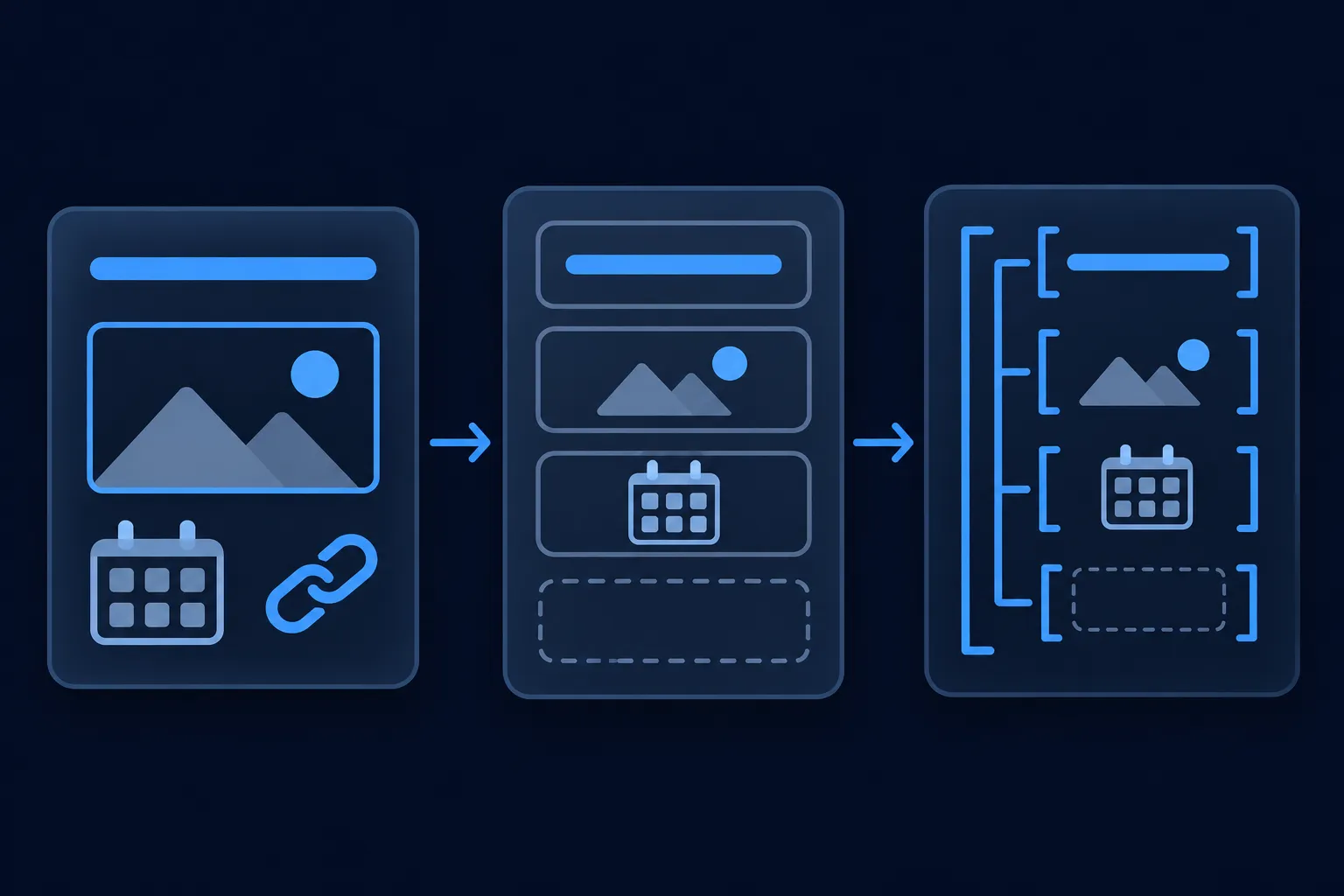
Run the setup in order
The steps are the same for each route, and only the place you paste the code changes. Domain-wide code can affect every HubSpot-hosted page on the selected domain, so page-specific entities generally use page or template scope. HubSpot's documentation also says blog posts have no Footer HTML option, so Head HTML or the template's head is where post-level markup goes.
Make the markup readable for Bing and AI search
Bing documents JSON-LD, Microdata, RDFa, Microformats and Open Graph, so the JSON-LD you add in HubSpot serves Bing too. DuckDuckGo says its traditional links come largely from Bing. Yandex documents Schema.org and JSON-LD support and a semantic markup validator (Yandex JSON-LD documentation).
OpenAI recommends allowing OAI-SearchBot and its published IP ranges if you want pages to appear in ChatGPT search (OpenAI crawler overview), and Perplexity documents PerplexityBot and Perplexity-User access controls. Check robots.txt, firewall rules and crawl logs for the crawlers you want to reach the page, and see whether AI systems use schema markup.
Fix duplicate or broken output
Most HubSpot schema problems come from a short list of causes. Look for them in the rendered HTML first.
Duplicate entities appear when a theme and a custom block both describe the same article or organization. Remove one, or connect them with the same @id. Malformed JSON usually comes from an unescaped quotation mark in a title or description, which is why the template above prints those fields through escapejson. A missing value that prints as an empty string, or a stray comma after an omitted property, breaks parsing in the same way.
Markup that describes content visitors cannot see does not meet Google's guidelines, and the same holds for reviews or ratings you did not collect. If a URL does not appear in the Rich Results Test, check Google's access conditions: crawl access, noindex, robots.txt and login requirements. After editing a template or a post, republish it and look at the live source again, because the template file and the page people reach can differ until the change is published.
Run the check again after every template change, theme change or edit to the markup itself, so a new duplicate or a broken value shows up early.
Questions people ask
Does HubSpot add Article schema automatically?
It depends on your theme, blog settings and subscription, so read your own page source instead of guessing. View one published post and search for application/ld+json. If an Article or BlogPosting is already there, update that output rather than adding a second one.
Can I add schema markup to one HubSpot blog post only?
Yes. Open the post, go to Settings, then Advanced, and paste the script element into Head HTML. HubSpot documents this route for individual posts, and you need Edit and Publish permission to use it.
Should Organization markup appear on every page?
The organization itself can be described once in Site Header HTML. Page-level entities then refer to it with a stable @id, so there is no need to repeat the whole object. Google lists no required properties for its Organization feature.
Is FAQPage markup still a Google rich-result opportunity?
No. Google's documentation updates say the FAQ rich result stopped appearing in Google Search on May 7, 2026, and the FAQ documentation was removed in June 2026. FAQPage remains a valid Schema.org type, and any FAQ markup you add should match visible questions and answers on the page.
Does schema markup guarantee ChatGPT or Perplexity citations?
No. OpenAI says placement in ChatGPT search is not guaranteed. Accurate content, crawlable HTML and allowed crawlers are the parts you control.