

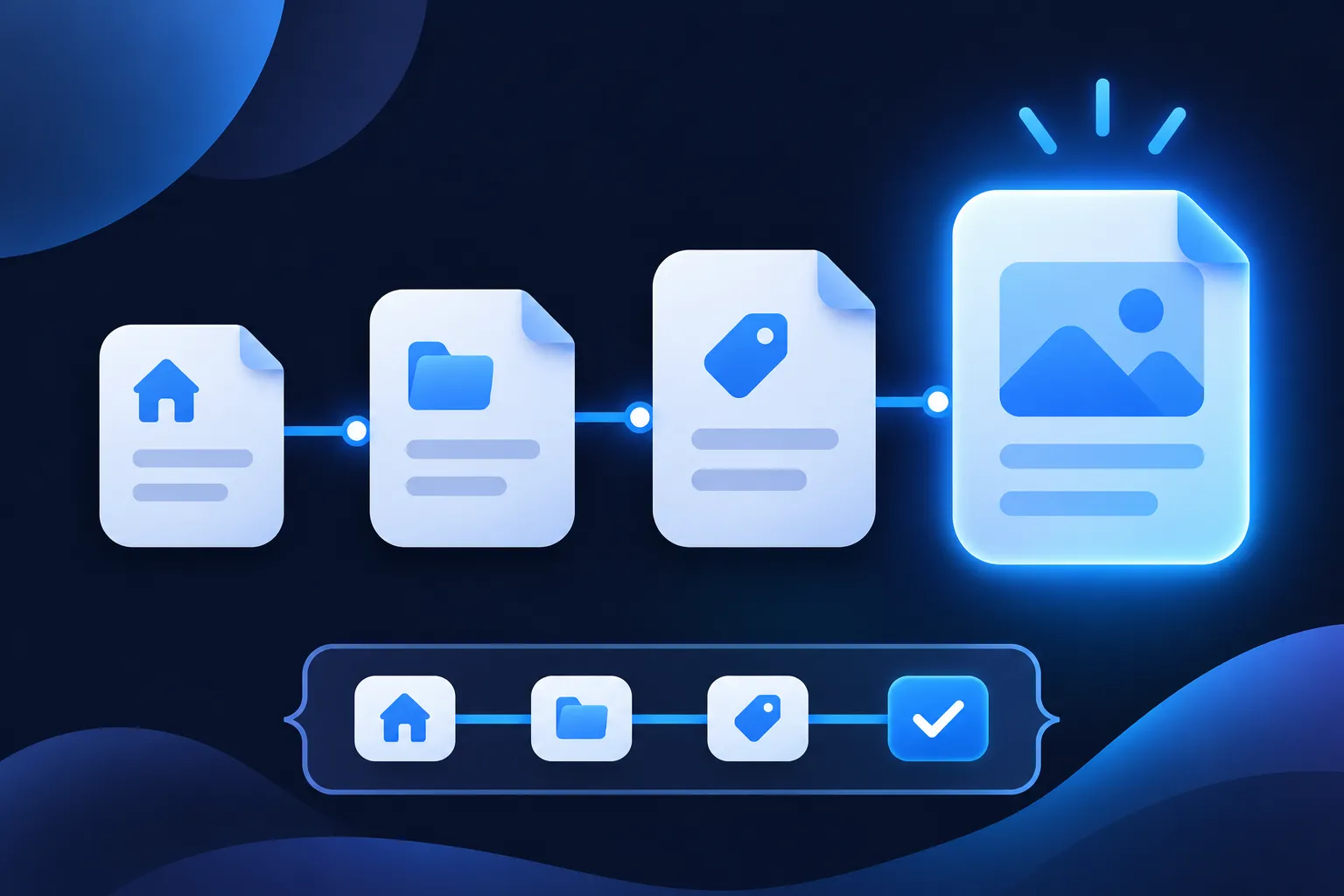
Add a BreadcrumbList JSON-LD block that describes the same trail the page shows. Use one ListItem for each level, number the position values from 1, give every item except the last an absolute URL, and put a name on every item. The labels and links should match the breadcrumbs a visitor sees on the page.
Google says breadcrumb display is available on desktop and that breadcrumbs no longer appear in mobile search results (Google Search Central Blog, January 23, 2025). Valid markup does not guarantee that a breadcrumb shows, so the goal is accurate markup that describes your page and leaves the display decision to each search engine.
Replace the example.com values below with your own labels and URLs, validate the result, and check the live page. The same routine works on WordPress, Shopify, Wix, Squarespace, Webflow and hand-built sites, once you know what the platform already outputs.
What BreadcrumbList changes in search
A breadcrumb trail is the short path on a page, such as Home, Blog, Schema Types, that shows where the page sits in the site. BreadcrumbList is the Schema.org type that describes that path in a form software can read. JSON-LD is the format that carries it, usually inside a script element in the page source.
For Google, valid breadcrumb markup can make a page eligible for breadcrumb display in desktop results. Google says the Breadcrumb feature is available in all regions and languages where Google Search is available. The January 2025 change affects where the trail is shown, not whether the markup is read; the documentation says the markup remains supported for desktop results and can still be tested in the Rich Results Test.
That is why a mobile search result with no breadcrumb is not a sign that your markup is broken. Check a desktop result, or the Rich Results Test, before changing anything.
Markup does not guarantee display, rankings, traffic or citations in AI answers. It gives search engines a clear, machine-readable statement of where the page belongs, and it costs very little to keep accurate.
Required properties for Google's Breadcrumb feature
Google's guidance asks for a BreadcrumbList that contains an itemListElement array with at least two ListItem objects. Each ListItem carries a position, and each normally carries a name and an item. The final breadcrumb may leave out item; Google can use the URL of the page that contains the markup.
You do not need to include the top-level domain as its own entry, and the current page does not have to appear in the list, although including it is valid when it is part of the visible trail. Google recommends a typical user path rather than mechanically copying the folders in a URL.
Two conditions sit next to those fields. The labels and URLs must describe content that is visible and accessible on the page, and the page must be reachable by Googlebot, without being blocked by robots.txt, noindex, a login or similar access controls. Google also says JSON-LD is its recommended structured data format, and data-vocabulary.org markup is no longer eligible for Google rich results.
"Required" in this section means required for this Google feature. Schema.org allows more than Google asks for, and Schema.org defines BreadcrumbList as an ItemList that holds an ordered chain of linked pages, with position used to rebuild the order. A ListItem can also use properties Google does not need. JSON-LD itself is case-sensitive in its keys and values, so ListItem and listitem are different things.
Add BreadcrumbList to a blog post
Take a post at https://example.com/blog/breadcrumb-schema/ that visibly shows the trail Home, Blog, Schema Types, Breadcrumb Schema. The JSON-LD repeats those four labels with the matching URLs.
{
  "@context": "https://schema.org",
  "@type": "BreadcrumbList",
  "itemListElement": [
    {
      "@type": "ListItem",
      "position": 1,
      "name": "Home",
      "item": "https://example.com/"
    },
    {
      "@type": "ListItem",
      "position": 2,
      "name": "Blog",
      "item": "https://example.com/blog/"
    },
    {
      "@type": "ListItem",
      "position": 3,
      "name": "Schema Types",
      "item": "https://example.com/blog/schema-types/"
    },
    {
      "@type": "ListItem",
      "position": 4,
      "name": "Breadcrumb Schema"
    }
  ]
}
Change each name to the label your visitors see, and each item to the full address of that level, including https://. Keep the count and order the same as the visible trail. The last entry has no item, so Google can use the URL of the page itself.
Notice that the trail does not repeat every URL folder. A path like /blog/breadcrumb-schema/ does not force a trail that lists each segment. If the site presents posts under a category, use the category your visitors can click, and keep the markup in step with it.
To place this block, wrap it in a script element in the page's HTML:
<script type="application/ld+json">
{ "@context": "https://schema.org", "@type": "BreadcrumbList", "itemListElement": [ ... ] }
</script>
Paste the full JSON from the example in place of the ellipsis. For the post itself, the article schema guide covers Article and BlogPosting markup, which is a separate block from the breadcrumb list.
Add BreadcrumbList to a product page
For a product, choose a stable category path. If an item sits in several collections, use the primary path your site shows to visitors, and do not invent a category only for markup. Here the fictional page is https://example.com/shop/desk-accessories/blue-desk-lamp/, with the visible trail Home, Shop, Desk Accessories, Blue Desk Lamp.
{
  "@context": "https://schema.org",
  "@type": "BreadcrumbList",
  "itemListElement": [
    {
      "@type": "ListItem",
      "position": 1,
      "name": "Home",
      "item": "https://example.com/"
    },
    {
      "@type": "ListItem",
      "position": 2,
      "name": "Shop",
      "item": "https://example.com/shop/"
    },
    {
      "@type": "ListItem",
      "position": 3,
      "name": "Desk Accessories",
      "item": "https://example.com/shop/desk-accessories/"
    },
    {
      "@type": "ListItem",
      "position": 4,
      "name": "Blue Desk Lamp"
    }
  ]
}
Swap in your own category names and category page URLs. The product name at the end should match the product heading on the page.
This block does not replace Product markup. Price, availability, brand and reviews belong in a separate Product implementation, which the product schema guide walks through, and the product variant guide covers sizes and colors. The two blocks sit on the same page and describe different things: one says where the product lives in the shop, the other says what the product is.

Use more than one trail when the page really has more than one path
Some pages can be reached through two legitimate paths. A page at https://example.com/books/award-winners/ might sit under Books, Science Fiction, Award Winners and also under Literature, Award Winners. In that case, supply an array of two BreadcrumbList objects.
[
  {
    "@context": "https://schema.org",
    "@type": "BreadcrumbList",
    "itemListElement": [
      {
        "@type": "ListItem",
        "position": 1,
        "name": "Books",
        "item": "https://example.com/books/"
      },
      {
        "@type": "ListItem",
        "position": 2,
        "name": "Science Fiction",
        "item": "https://example.com/books/science-fiction/"
      },
      {
        "@type": "ListItem",
        "position": 3,
        "name": "Award Winners"
      }
    ]
  },
  {
    "@context": "https://schema.org",
    "@type": "BreadcrumbList",
    "itemListElement": [
      {
        "@type": "ListItem",
        "position": 1,
        "name": "Literature",
        "item": "https://example.com/literature/"
      },
      {
        "@type": "ListItem",
        "position": 2,
        "name": "Award Winners"
      }
    ]
  }
]
Each trail must be valid on its own, with at least two items, and each must be a real path a visitor can follow. Replace the names and URLs with your own paths, and delete the second trail if the page has only one.
Do not generate a trail for every filter, tag or query parameter. A long list of near-identical trails describes the site's plumbing rather than how people move through it.
Match the markup to the visible trail
The markup should describe the same choices a visitor sees. If the page visibly shows Home, Guides, Structured Data, Breadcrumb Schema, the JSON-LD should use those same labels and the destination URLs of those pages. Google's general structured data guidelines say markup must represent content that visitors can see, and Bing's structured data guidance also asks for accurate markup.
Three habits keep the two in step. Build the visible trail first, and generate the JSON-LD from the same data where your platform allows it. Use the canonical URL of each level, not a tracking or filtered variant. After you rename a category, change a slug or move a page, update the trail and the markup together.
The visible trail also helps visitors and supports internal linking, which is reason enough to keep it even on pages where no breadcrumb will appear in mobile results. When you later connect the breadcrumb list with an organization, a product or an article in one block, the JSON-LD graph guide shows how @graph and @id tie those entities together.
Add it on WordPress, Shopify, Wix, Squarespace, Webflow or a coded site
On every platform, start by finding out what is already there. Open the live page, view its source, and search for BreadcrumbList. A theme, an SEO plugin or an app may already output breadcrumb markup, and a second block that describes the same trail makes two descriptions of one thing. If one exists and is right, leave it; if it is wrong, change the setting that produces it rather than adding another.
WordPress. WordPress.com has a structured data setting and a breadcrumb option. Self-hosted sites usually get breadcrumbs from a theme or an SEO plugin, so check that tool's breadcrumb setting and its output before adding code. The WordPress schema markup guide covers how to find and replace existing output safely.
Shopify. Many themes include breadcrumbs and some output their own markup. Look at the theme's source for BreadcrumbList before pasting anything, and confirm the category path matches the collection your product pages show.
Wix. Wix lets you add custom JSON-LD in the SEO panel, and it can output markup automatically for products and blog posts. Studio Editor has a breadcrumbs element that follows the parent-page hierarchy. Check the live source before adding custom code, because behavior varies by Wix product and by dynamic pages.
Squarespace. Squarespace says it outputs some structured data automatically, and that some schemas cannot be edited or removed. Check a published page's source for BreadcrumbList before you add your own.
Webflow. Webflow has a schema field and a custom code route. Use one of them for a given block, not both, because the same markup in two places can produce duplicates. Publish, then inspect the live page.
Next.js and other coded sites. The Next.js documentation on JSON-LD describes rendering the script in a layout or a page and sanitizing the output. For a page component, the pattern looks like this:
export default function Page() {
  const breadcrumbs = {
    '@context': 'https://schema.org',
    '@type': 'BreadcrumbList',
    itemListElement: [
      { '@type': 'ListItem', position: 1, name: 'Home', item: 'https://example.com/' },
      { '@type': 'ListItem', position: 2, name: 'Shop', item: 'https://example.com/shop/' },
      { '@type': 'ListItem', position: 3, name: 'Blue Desk Lamp' }
    ]
  }

  return (
    <script
      type="application/ld+json"
      dangerouslySetInnerHTML={{
        __html: JSON.stringify(breadcrumbs).replace(/</g, '\\u003c')
      }}
    />
  )
}
Build the itemListElement array from the same data that draws the visible trail, so a renamed category changes both at once.
Validate the markup and troubleshoot what you see
Validation takes several checks, and each answers a different question. Run the page through the Schema Markup Validator to confirm the vocabulary and syntax. Run the Google Rich Results Test to see whether the page is eligible for the Google feature. Use URL Inspection in Search Console to check what Google sees on the live URL, and use Search Console's reports to watch for later changes. If you target Bing, the URL Inspection tool in Bing Webmaster Tools has a Markup card that can inspect JSON-LD and other markup formats.
None of these tools promise a display. A clean result means the markup is readable and meets the feature's requirements; it does not mean a breadcrumb will appear for any particular search.
When something looks wrong, work through the usual causes in order. Check that the page can be crawled, with no robots.txt block, noindex or login. Confirm every non-final item has a full item URL and every item has a name and a position. Look for two blocks describing the same trail, which happens when a theme and a plugin both output markup. Compare the labels with the visible trail. Last, view the result on desktop, since Google says mobile results no longer show breadcrumbs.

Recheck after any change to the site menu, a category rename, a template update or a plugin switch. A trail that was correct at launch can drift when a parent page moves, and the visible breadcrumb often changes before anyone remembers the markup.
Make the breadcrumbs readable for Bing and AI search
Bing reads Schema.org in JSON-LD and lists breadcrumbs as a supported scenario, so the same block serves both Google and Bing. Allow Bingbot to crawl the page and inspect the live URL in Bing Webmaster Tools. Yandex offers a semantic markup validator that recognizes Schema.org, JSON-LD, Microdata and RDFa.
To let ChatGPT search and Perplexity reach the page, allow OAI-SearchBot (OpenAI's crawler documentation) and PerplexityBot (Perplexity's crawler documentation) in robots.txt. For the wider question, see whether AI systems use schema markup.
Build the markup with the breadcrumb generator
If you would rather not write the JSON by hand, the Schema Nova breadcrumb schema generator builds a BreadcrumbList from the labels and URLs you enter. Replace its example values with the trail your page shows, then check the output with the schema validator before you publish.
Questions people ask
Does BreadcrumbList markup guarantee breadcrumbs in Google?
No. Google says eligible markup is not guaranteed to appear, and says breadcrumbs no longer show in mobile search results. Valid markup makes the page eligible for the Google feature; whether a breadcrumb is shown is Google's decision.
Does the last breadcrumb need an item URL?
Not for Google. The final item may omit item, and Google can use the URL of the page that contains the markup. Every earlier item needs a full URL in item.
Does Google require the top-level domain as the first breadcrumb?
No. Google's guidance says the top-level domain or host does not need to be included as an entry. Many sites still start the trail with a Home item because visitors see one, and the markup should follow the visible trail.
Can a page have more than one breadcrumb trail?
Yes, when the page has more than one real path a visitor can follow. Each trail must be a valid BreadcrumbList with at least two items. Avoid creating trails for every filter or query parameter.
What if my CMS already outputs breadcrumbs?
Check the page source for BreadcrumbList before adding code. If the existing block matches the visible trail, leave it alone. If it is wrong, adjust the theme, plugin or app setting that produces it, so the page does not carry two competing descriptions.
Does breadcrumb schema improve rankings?
Google's documentation describes breadcrumb markup as making a page eligible for breadcrumb display, and it does not promise rankings or traffic. The visible trail helps visitors move through the site, and accurate markup tells search engines where the page sits.