

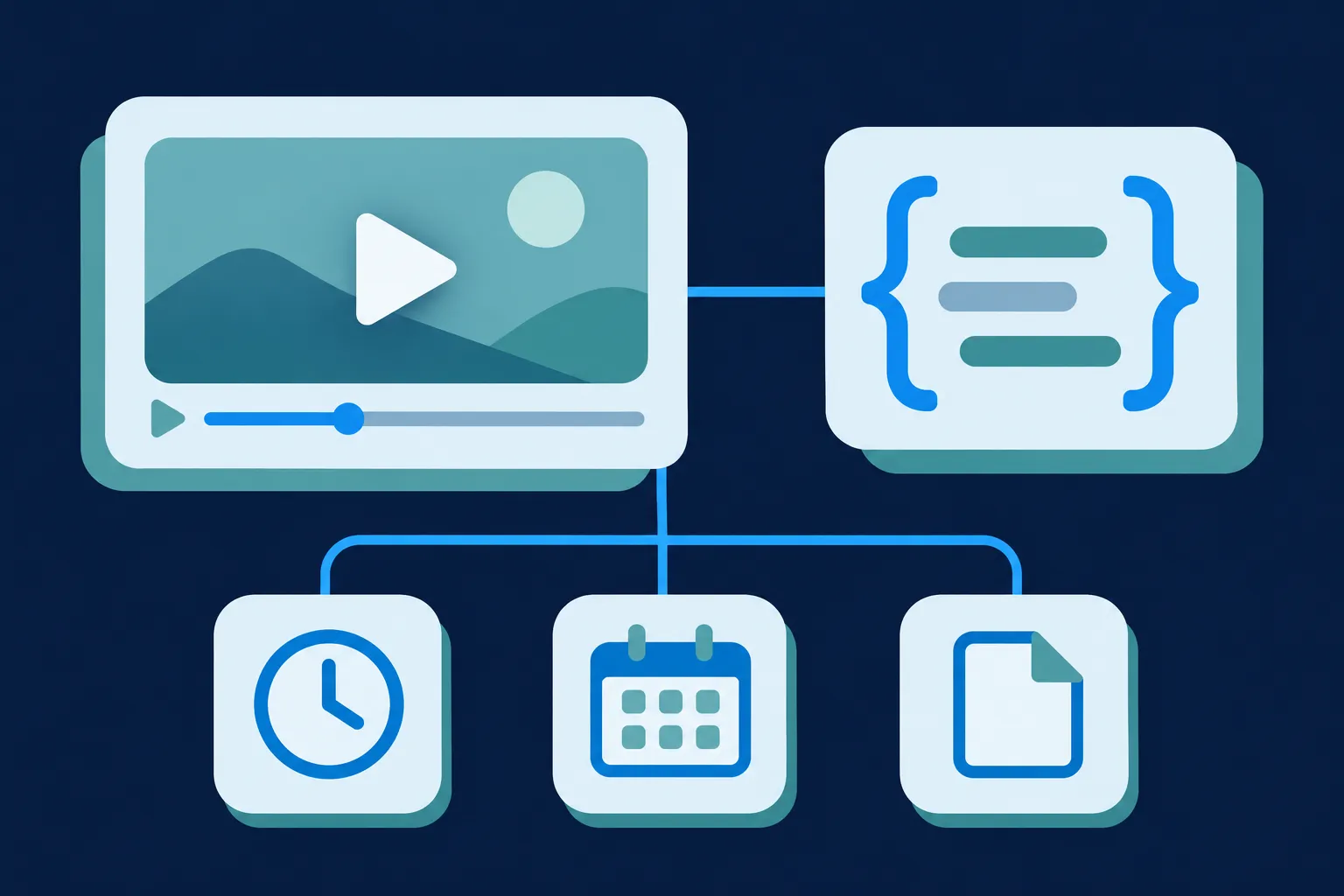
Add one VideoObject JSON-LD block to the watch page, the page where a visitor can press play, and describe only the video shown there. Fill in its name, thumbnail, upload date, duration and a player or file address from what the page displays.
Before you add anything, look at what your theme, SEO plugin or video plugin already outputs. If a block for this video exists, update it instead of adding a second description of the same video. Then work through the fields below, validate the code and watch how Google reports the video.
What a VideoObject block describes
VideoObject is the schema.org type for a video. The markup is JSON-LD, a JSON-based notation that usually sits in a script element, and it tells search systems the title, thumbnail, upload date, length and location of one video. It labels the video that is already on the page; it does not replace the player or the text around it.
Place it on the watch page. Google's video guidance says the video must be embedded on a watch page and must not be hidden behind other page elements (Google Video SEO best practices). If a page shows two videos, each one gets its own block with its own values.
To find out what is already there, open the page, view its source and search for VideoObject. Paste the page address or the code into the Schema Validator to see what the page outputs. If a plugin writes the block, correct the fields it gets wrong in that plugin's settings, rather than layering a second block on top.
Google says videos with structured data may appear in Search, Video mode, Google Images and Discover (documentation updated August 23, 2026, Google Video structured data). Treat that as a description of where the feature can show, not a promise for any one video.
If the watch page is also a blog post, its Article or BlogPosting markup describes the post and the VideoObject describes the video. They are two entities on one page; the Article schema guide covers the post side.
Fields Google's video feature requires
Four properties are required for Google's video feature, and each should be filled from what a visitor can see on the page. A fifth, a player address, is required unless you supply the file address instead.
nameis the title of the video as the page shows it.thumbnailUrlis the address of a valid thumbnail image at a stable URL that crawlers can fetch.uploadDateis the date and time the video was published, in ISO 8601 form with a time zone, such as2026-05-14T09:00:00-05:00.durationis the length in ISO 8601 form, soPT6M12Smeans six minutes and twelve seconds.
Google asks for a player URL through embedUrl when contentUrl is not supplied. It lists contentUrl and description as recommended when available. It treats transcript, creator, interactionStatistic, regionsAllowed and expires as optional unless they apply to your content (Google Video structured data).
Read "required" with its consumer attached. These are requirements of Google's documented feature. Schema.org defines the wider vocabulary and does not decide Google eligibility, and the same fields are not automatically requirements for Bing, Apple, Yandex or AI systems. Valid JSON, valid vocabulary, a met Google requirement and an indexed video are four separate things, and none of them implies the next.
A livestream adds one more feature. Google's LIVE badge needs a publication property holding a BroadcastEvent with isLiveBroadcast and startDate, plus endDate when the stream ends. Google's Indexing API supports livestream videos only, and Google recommends calling it when the stream starts, ends or changes its markup.
contentUrl and embedUrl are different addresses
contentUrl is the address of the video file or stream itself, the actual media bytes. embedUrl is the address of a player that displays the video. They are not interchangeable, and putting a player page in contentUrl or a file in embedUrl gives crawlers the wrong kind of address.
Schema.org describes the distinction in its VideoObject properties, and the Next.js video guidance draws the same line between direct video files played in a video element and external players loaded through an iframe.
A simple rule works for most sites. If you host the file, give its stable address as contentUrl. If a platform hosts the video and you embed its player, give that player address as embedUrl and leave contentUrl out. When you host the file and also have a separate player URL, supply both.
Markup for a YouTube embed
A YouTube embed is still a video on your watch page. Add the VideoObject block to the page that holds the embedded player, using the page's own title, a thumbnail, the duration and upload date, and the player address as embedUrl. Do not claim the YouTube file as yours, and do not invent a contentUrl.

Use a stable YouTube thumbnail URL or another image that accurately represents the video. Confirm the video is public or unlisted and that embedding is allowed. The page should also carry useful text about the video, so a visitor and a crawler both get more than a bare player.
The block below describes a fictional embedded video. Change @id, name, description, thumbnailUrl, uploadDate and duration to match your page, and replace the placeholder embedUrl, a reserved example address, with the player URL from your own YouTube embed code.
{
  "@context": "https://schema.org",
  "@type": "VideoObject",
  "@id": "https://example.com/guides/solar-panel-cleaning/#video",
  "name": "How to Clean Rooftop Solar Panels",
  "description": "A fictional six-minute demonstration of a safe rooftop solar-panel cleaning routine.",
  "thumbnailUrl": [
    "https://example.com/media/solar-cleaning-16x9.jpg"
  ],
  "uploadDate": "2026-05-14T09:00:00-05:00",
  "duration": "PT6M12S",
  "embedUrl": "https://example.org/embed/EXAMPLE_VIDEO_ID"
}
When the video has timestamp labels in its YouTube description, YouTube publishers can rely on them for key moments. If your own page controls chapter links, the Clip markup in the key moments section is the alternative.
Markup for a self-hosted video file
A self-hosted video takes the stable address of the file as contentUrl. Keep that file and the thumbnail reachable by crawlers, and use an HTML video element or another crawlable player so the page itself plays the video. Google's guidance lists MP4, WebM, MOV and M3U8 among supported formats and says data URLs are not supported.
Captions or a transcript help visitors who cannot listen, and they give the page clearer text about what the video covers. If the player has its own address, add it as embedUrl as well.
The example below adds a transcript and a publisher, which are valid schema.org properties and optional for Google's standard video feature. Replace the organization name and URL with your own, and keep transcript only if the text matches the video.
{
  "@context": "https://schema.org",
  "@type": "VideoObject",
  "@id": "https://example.com/guides/solar-panel-cleaning/#video",
  "name": "How to Clean Rooftop Solar Panels",
  "description": "A fictional six-minute demonstration of a safe rooftop solar-panel cleaning routine.",
  "thumbnailUrl": [
    "https://example.com/media/solar-cleaning-16x9.jpg"
  ],
  "uploadDate": "2026-05-14T09:00:00-05:00",
  "duration": "PT6M12S",
  "contentUrl": "https://example.com/media/solar-cleaning.mp4",
  "embedUrl": "https://example.com/guides/solar-panel-cleaning/#video-player",
  "transcript": "This fictional transcript summarizes the steps shown in the video.",
  "publisher": {
    "@type": "Organization",
    "name": "Example Organization",
    "url": "https://example.com"
  }
}
To tie the video to the page and the publisher, give the block an @id and reference it from the page's other entities. The JSON-LD graph guide shows how one @graph links a page, an organization and a video into one entity map.
Key moments with Clip and SeekToAction
Key moments let a video show named segments with links that open at a specific time. Two mechanisms exist, and they work differently. Clip names each segment yourself, with a start time, an end time and a deep link. SeekToAction gives Google a URL pattern so it can build timestamped links for moments it detects itself.
Both need a video that is at least 30 seconds long, and the deep link must open the video at the stated time. Google says Clip is supported in all languages where Google Search is available. For SeekToAction, Google currently lists English, Spanish, Portuguese, Italian, Chinese, French, Japanese, German, Turkish, Korean, Dutch and Russian. A nosnippet rule can opt the video out of key moments.
Use Clip when your page controls working chapter links. Each clip needs name, startOffset, endOffset and url, with offsets in seconds. The parent VideoObject must still carry its own required properties, so the example repeats them.
{
  "@context": "https://schema.org",
  "@type": "VideoObject",
  "name": "How to Clean Rooftop Solar Panels",
  "description": "A fictional demonstration of a rooftop solar-panel cleaning routine.",
  "thumbnailUrl": "https://example.com/media/solar-cleaning-16x9.jpg",
  "uploadDate": "2026-05-14T09:00:00-05:00",
  "duration": "PT6M12S",
  "contentUrl": "https://example.com/media/solar-cleaning.mp4",
  "embedUrl": "https://example.com/guides/solar-panel-cleaning/#video-player",
  "hasPart": [
    {
      "@type": "Clip",
      "name": "Safety equipment",
      "startOffset": 0,
      "endOffset": 74,
      "url": "https://example.com/guides/solar-panel-cleaning/?t=0"
    },
    {
      "@type": "Clip",
      "name": "Cleaning sequence",
      "startOffset": 75,
      "endOffset": 265,
      "url": "https://example.com/guides/solar-panel-cleaning/?t=75"
    }
  ]
}
Use SeekToAction only when your player supports timestamp URLs that actually work. The target holds the pattern, and startOffset-input names the placeholder Google fills with a second count. Change the target host and path to your own watch page.
{
  "@context": "https://schema.org",
  "@type": "VideoObject",
  "name": "How to Clean Rooftop Solar Panels",
  "description": "A fictional demonstration of a rooftop solar-panel cleaning routine.",
  "thumbnailUrl": "https://example.com/media/solar-cleaning-16x9.jpg",
  "uploadDate": "2026-05-14T09:00:00-05:00",
  "duration": "PT6M12S",
  "embedUrl": "https://example.com/guides/solar-panel-cleaning/#video-player",
  "potentialAction": {
    "@type": "SeekToAction",
    "target": "https://example.com/guides/solar-panel-cleaning/?t={seek_to_second_number}",
    "startOffset-input": "required name=seek_to_second_number"
  }
}
Describing key moments does not mean Google will show them. The markup makes the video eligible for the feature; it is not an instruction Google must follow.
Where the block goes on each platform
The block belongs in the page's HTML, in a script element with the type application/ld+json. How you get it there depends on the platform, and each one already treats video in its own way.
On WordPress, the editor supports YouTube, Vimeo and self-hosted video blocks (WordPress Embeds, updated April 15, 2026). Shopify supports uploaded product videos and YouTube or Vimeo URLs (Shopify product media). Squarespace supports uploaded videos and YouTube or Vimeo URLs (Squarespace Video blocks).
Wix supports uploaded videos and embeds, but its documentation says some editors do not expose the site's HTML (Wix video options). Confirm that the editor you use allows custom code before planning around it. Webflow supports YouTube, Vimeo, uploaded background video and custom code embeds (Webflow Video and Webflow Custom code embed).
For HubSpot, confirm the current template or head-injection method in HubSpot's own editor before you add custom JSON-LD. On a hand-built or Next.js site, a direct file plays in a video element and an external player loads in an iframe, and the matching block goes in the page output beside it.
On every platform, use the supported custom HTML or head-injection route, and check the page source afterward for a second VideoObject from a plugin or app. The wrapper looks the same everywhere; paste your own JSON between the tags.
<script type="application/ld+json">
{
  "@context": "https://schema.org",
  "@type": "VideoObject",
  "name": "Your video title",
  "thumbnailUrl": "https://example.com/media/your-thumbnail.jpg",
  "uploadDate": "2026-05-14T09:00:00-05:00",
  "duration": "PT6M12S",
  "contentUrl": "https://example.com/media/your-video.mp4"
}
</script>
Validate the markup and watch video indexing
Test the code first for syntax, then for Google's feature. Paste it into the Schema Validator to catch JSON problems such as a missing closing brace. Then run the page through Google's Rich Results Test, which checks the structured data against the video feature's requirements.
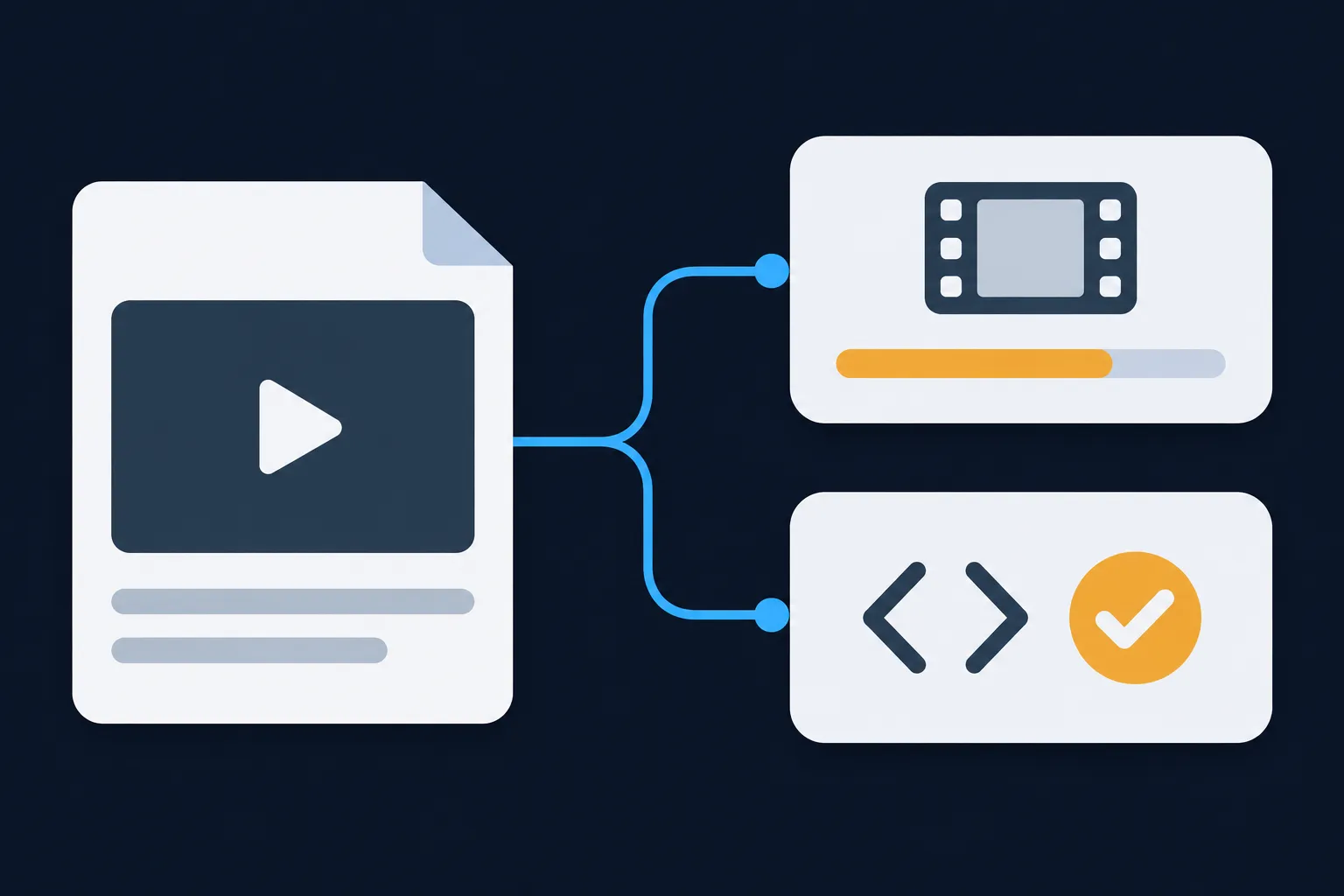
After the page is live, use Search Console's URL Inspection tool. It can show a page's detected video URL, thumbnail URL, indexing status and any video-indexing issues. Live URL Inspection does not show video-indexing status, so inspect the indexed version. These details come from Google's Video indexing report announcement, published July 11, 2022.
Search Console has two reports about video, and they answer different questions. The Video indexing report covers whether Google detected and indexed the video, regardless of structured data. It lists how many pages contain videos Google identified, which videos were indexed, which issues block indexing and whether fixes were validated. The Video rich results report covers the validity of video structured data items.
A page can pass the Rich Results Test and still have a video that Google has not indexed, and the reverse can also happen. Valid markup does not guarantee indexing, a rich result, a ranking or traffic, so read both reports and let each one answer its own question.
When Google does not index the video
If the Video indexing report lists an issue, work through Google's indexing requirements before changing the markup. They apply whether or not you add structured data.
- The watch page must be indexed, and it should perform well in Search before its video is considered for indexing.
- The video must be embedded on the watch page and not hidden behind other page elements.
- The thumbnail must be valid and available at a stable URL.
- A supplied video file or streaming URL must be crawlable, in a supported format.
- The page and the media host need enough server capacity for crawling.
A video hidden behind other page elements does not meet Google's indexing requirement. Marking up a video that visitors cannot see or play describes something the page does not show, so show the video and then describe it.
Google also documents video sitemaps and mRSS feeds as ways to help it discover videos. They supplement the on-page markup and do not replace the watch page.
Make the video readable for Bing and AI search
Bing supports the same JSON-LD block, and its Webmaster Tools URL Inspection has a Markup card that shows your JSON-LD and flags issues. Bing also recommends video mRSS feeds as a supplement to normal sitemaps, and says captions, transcripts or structured data can help it understand video (Bing Webmaster Guidelines). Yandex lets sites join its video search program with descriptive video tags and validated metadata.
To be included in ChatGPT summaries and snippets, allow OAI-SearchBot (OpenAI Publishers and Developers FAQ). For DuckDuckGo and Perplexity, valid JSON-LD, page text with captions or a transcript, and crawlable video URLs are the practical steps. See whether AI systems use schema markup for the full comparison.
Questions people ask
Does VideoObject guarantee a video rich result?
No. Google says valid markup does not guarantee a rich result, and the video also has to be indexed and shown. Bing makes a similar point about annotations and visually rich results. Use the Video indexing report to see whether Google detected and indexed the video.
Can I use VideoObject for a YouTube embed?
Yes. Put the block on the page that holds the embedded player, use the YouTube player address as embedUrl, and describe the video the page shows. Leave contentUrl out, because the file belongs to YouTube and the page does not host it.
Does Google require contentUrl?
Not when embedUrl is supplied. Google requires a player URL through embedUrl unless contentUrl is supplied, and lists contentUrl as recommended when available. If you host the file, include it so crawlers can reach the media itself.
Does Clip create chapters automatically?
No. Clip is what you write when you name segments yourself, with start times, end times and working deep links. If you would rather let Google detect moments, provide a SeekToAction URL pattern, and for YouTube videos add timestamp labels to the description.
Does VideoObject help ChatGPT search or Copilot?
Allow OAI-SearchBot if you want inclusion in ChatGPT summaries and snippets, and keep Bing Webmaster Tools working for the Bing path. Accurate VideoObject markup, captions or a transcript, and crawlable video URLs serve both.