

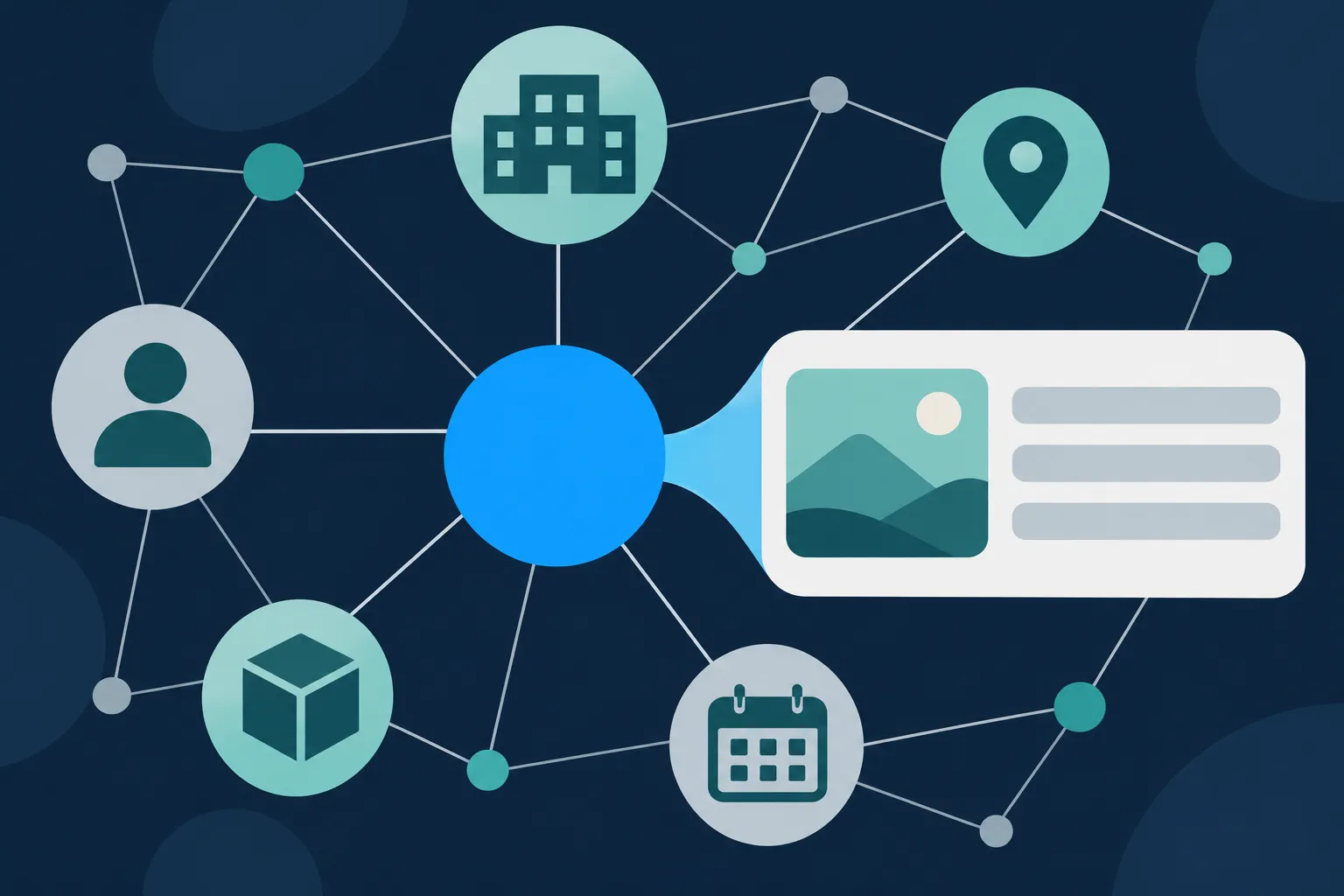
Google's Knowledge Graph is a database of facts about real-world entities such as organizations, people, places, products and events. A Knowledge Panel is one possible display in Google Search that Google builds from what it understands about an entity. You cannot request inclusion or switch a panel on with markup.
What you can do is make your organization easy to interpret. Publish complete, accurate details on your official site, add accurate Organization structured data that matches them, and keep names, logos and profiles consistent everywhere.
Start with the visible facts on your homepage or an about page, then add the markup, then test it. If a panel for your organization already exists, Google's own claim and feedback steps are the way to manage it.
Knowledge Graph, Knowledge Panel and Business Profile: what each one is
Three Google terms get mixed together, and each one has a different owner and a different way to influence it. The Knowledge Graph is the database. A Knowledge Panel is a possible information box in Search. A Business Profile is a separate listing you manage yourself. Your own Organization markup is a fourth thing: a description published on your site that Google may read.
Google describes the Knowledge Graph as a collection of billions of facts about people, places and things, which it uses to answer factual questions and to build displays when its systems decide a panel would be useful (How Google's Knowledge Graph works). The panel itself is generated automatically. Nobody on Google's side builds a panel for you on request, and nobody on your side can publish one directly.
A Business Profile is different again. Google says Business Profiles are for businesses that serve customers at a physical location or within a designated service area, and a business manages that presence through Google Business Profile rather than through a panel. A business can have a profile without a panel, and a panel can exist for an organization that has no profile, such as an online-only publication.
Keep the four apart when you plan the work: Google controls the database and the panel, you control your Business Profile and your markup.
Where Google says its facts come from
Google's Knowledge Panel Help lists the kinds of material behind Knowledge Graph facts. They include public sources that compile factual information, licensed data such as sports scores, stock prices and weather, and other open-web sources and data partners. It also names direct information from content owners, which includes changes suggested by people who have claimed a panel (About knowledge panels).
Google adds that panels update automatically as information on the web changes, and that it also considers direct feedback from the entity and from general users. That matters for your own planning. Your site is one public source among several, and a wrong description in a panel often traces back to a different place than your homepage.
So, an accurate website is a good foundation, but it is not the only input. A directory listing, a public profile or a reference page that describes you differently can pull a panel in another direction. Keep those external descriptions consistent with your own, and you give Google fewer conflicting facts to reconcile.
What your own site can add
Google documents that Organization structured data on a homepage can help it understand administrative details about an organization and disambiguate it from similarly named ones. Google also says Organization markup can influence some visual elements, including the logo shown in Search and in knowledge panels (Organization structured data, Google Search Central Blog, November 29, 2023).
Google's Organization documentation lists no required properties for this feature, and recommends adding the relevant ones rather than filling every field. It also says to use the most specific applicable Organization subtype and to place the markup on the homepage or a page that describes the organization. The values must match what visitors can read on the page.
The properties that do the most identifying work are name, url, logo and sameAs. The name and url identify the organization and its site. The logo helps Google understand which image to show. The sameAs property points to pages on other sites that unambiguously identify the same organization, such as an official social profile or directory listing. Contact details such as address, telephone and email fit when they appear on the page.
Google's general structured data guidelines add two limits worth keeping next to all of this. Markup should describe content that is visible on the page, and correct markup does not guarantee that any display appears (General structured data guidelines).
Organization JSON-LD to adapt
The example below is a complete Organization block for a fictional publisher. Replace every value with the facts on your own page: the name, the homepage url, the real logo file, the description as your page words it, the two sameAs URLs and the contact details. Delete any property your page does not display, because an empty or invented value is worse than a missing one.
{
  "@context": "https://schema.org",
  "@type": "Organization",
  "@id": "https://www.example.com/#organization",
  "name": "Example Cloud Studio",
  "url": "https://www.example.com/",
  "logo": "https://www.example.com/images/example-cloud-studio-logo.png",
  "description": "Example Cloud Studio publishes cloud software tutorials and documentation.",
  "sameAs": [
    "https://www.example.net/example-cloud-studio",
    "https://social.example.com/example-cloud-studio"
  ],
  "email": "hello@example.com",
  "telephone": "+1-555-0100",
  "address": {
    "@type": "PostalAddress",
    "streetAddress": "100 Example Avenue",
    "addressLocality": "Example City",
    "addressRegion": "EX",
    "postalCode": "00000",
    "addressCountry": "US"
  }
}
Put the block in a script element with the type application/ld+json on the homepage or about page. If your theme or SEO plugin already prints an Organization node, edit that output instead of adding a second description of the same organization. You can build a block like this in the Organization schema generator, and the Organization schema guide covers each property in more depth.

The logo URL should open an image that crawlers can fetch, so confirm that your robots rules do not block it. Then compare the markup with the page. If the markup lists a phone number the page does not show, remove it from the markup or add it to the page.
sameAs and @id in brief
The @id value names this node so other parts of your structured data can refer to it. Use a stable, URL-based identifier such as https://www.example.com/#organization, and reuse the same value wherever another node points back at the organization. It connects the nodes in your own graph. It is not a promise that Google will assign or show a Knowledge Graph identifier.
Here is the pattern with a WebSite node that names the organization as its publisher. The two nodes share one @id, so a reader of the markup sees one organization rather than two.
{
  "@context": "https://schema.org",
  "@graph": [
    {
      "@type": "Organization",
      "@id": "https://www.example.com/#organization",
      "name": "Example Cloud Studio",
      "url": "https://www.example.com/"
    },
    {
      "@type": "WebSite",
      "@id": "https://www.example.com/#website",
      "url": "https://www.example.com/",
      "name": "Example Cloud Studio",
      "publisher": {
        "@id": "https://www.example.com/#organization"
      }
    }
  ]
}
@graph and @id are JSON-LD mechanisms for describing connected nodes, not a separate Google feature. Choose sameAs URLs that identify your organization and nothing else; a page that merely mentions you does not qualify, and a profile that belongs to a different entity can confuse the match. The entity SEO guide on sameAs and @id owns the full setup, including how to avoid duplicate nodes. The JSON-LD graph guide explains the structure in general.
Claim or correct a panel through Google's steps
If a panel for your organization already shows in Google Search, you can ask to manage it. The steps below follow Google's help pages (Get verified on Google). Google's wording on screen can change, so follow the current prompts.
- Search Google for the organization and find its Knowledge Panel.
- Select the option to claim the panel.
- Sign in through an associated official account or profile when Google offers it, such as Search Console, YouTube, Facebook or X.
- Submit the changes you want, with supporting public URLs.
- If the panel cannot be claimed, or you only want to report a problem, use the panel's Feedback option.
Not every panel can be claimed. Even a claimed panel does not give the representative unrestricted editing control. Some descriptions come from external sources, and those have to be corrected where they originate rather than inside the panel (Submit feedback on content about you).
If a panel shows a wrong fact, look at where that fact is likely to come from. Start with your own homepage and about page, then public profiles and reference pages that describe you. Fix those first, then send the correction through Google's feedback option with a public URL that supports the change.
Look up an entity with the Knowledge Graph Search API
The Knowledge Graph Search API is a read-only API that finds matching entities in Google's Knowledge Graph. It returns results that use Schema.org types and are compatible with JSON-LD. It is a lookup tool, so it cannot add, edit or request an entity. For access, API keys and terms, use Google's page on the Knowledge Graph Search API and its prerequisites.
A request is a single URL. Swap in the name you want to look up, and replace API_KEY with your own key.
https://kgsearch.googleapis.com/v1/entities:search?query=Example%20Cloud%20Studio&types=Organization&limit=5&indent=True&key=API_KEYThe query parameter holds the text to match, types filters by a Schema.org type such as Organization, Person or Place, and limit caps the number of results. Optional languages and prefix parameters adjust language and prefix matching, and indent formats the JSON so a person can read it.
Matches come back in itemListElement. Each result can include a Google identifier in @id, often in a kg:/ form, along with name, @type, description, url, image and detailedDescription. A resultScore gives Google's relevance score for that API match. The API returns matching entities, not a whole graph of connections.
Read a result as evidence that the API matched your query. It does not prove that a Knowledge Panel exists, and not every returned field appears in Search. Google also warns on its API page that the legacy API is being migrated toward Cloud Enterprise Knowledge Graph and should not be treated as a production-critical dependency, so avoid building a business process on it.
Make the Organization markup readable for Bing and AI search
Bing reads Schema.org JSON-LD, Microdata and RDFa, so the same Organization block serves it, and Bing URL Inspection shows what Bingbot sees. DuckDuckGo draws many traditional links and images from Bing, and Yandex has a structured data validator.
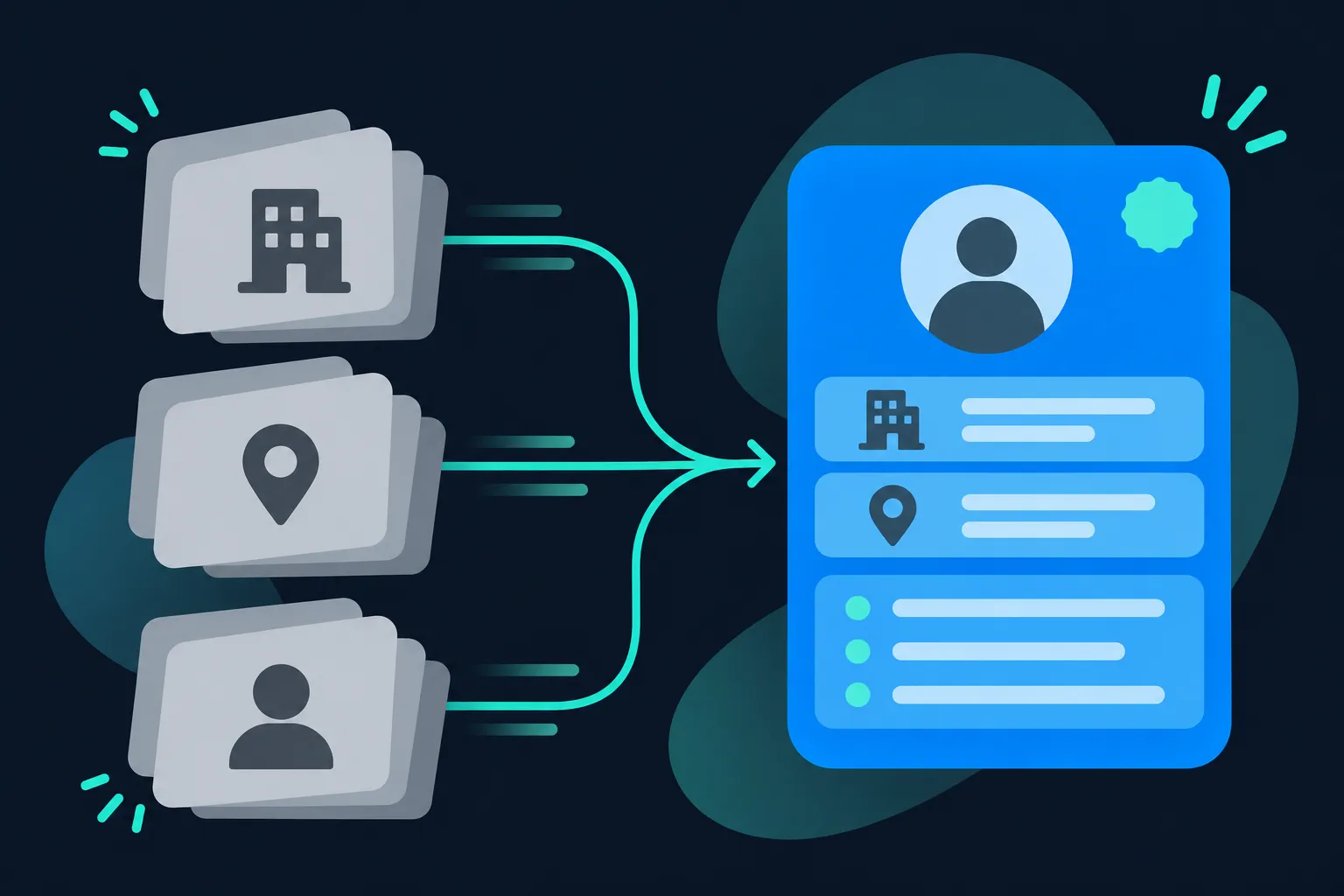
To appear in ChatGPT search answers, allow OAI-SearchBot in robots.txt; GPTBot and ChatGPT-User are separate crawlers (OpenAI crawler overview). Allow PerplexityBot for Perplexity. Keep important facts visible in plain HTML, and see whether AI systems use schema markup.
Check the markup and work out why a panel is missing
Run the checks in order, because each one answers a different question. First confirm the JSON is valid and the Schema.org vocabulary is right with the Schema Nova validator or the Schema Markup Validator. Then run Google's Rich Results Test on the live URL to see whether Google can read the markup and what feature support it reports.
Next inspect the URL in Search Console to see whether Google has indexed the page and what it can render. For Bing, use URL Inspection in Bing Webmaster Tools. For Yandex, use its validator. A pass in any of these confirms parsing, eligibility or crawlability. It does not create a panel.
If no panel appears, the cause is usually outside your markup. Google generates panels automatically and decides when one is useful, so there may simply be no panel for your organization. Check that the page is crawlable, that your visible facts match your markup, and that public profiles describe you consistently. Then recheck after real changes such as a new logo, address or brand name.
Two features commonly mentioned alongside this topic are not Google Search opportunities now. Google stopped showing FAQ rich results in May 2026 and removed the FAQ documentation in June 2026, and it retired How-to rich results earlier. The FAQPage and HowTo vocabulary stays valid Schema.org, so existing markup is not an error, but do not add it expecting a Google display.
Questions people ask
Can schema markup create a Knowledge Panel?
No. Google generates panels automatically from its understanding of an entity. Organization markup can help Google interpret and disambiguate your organization, and Google says it can influence some visual elements, but it cannot force inclusion or switch a panel on.
How do I claim a Knowledge Panel?
Search for your organization, find its panel and select the claim option, then sign in through an associated official account if Google offers one. Not every panel is claimable. When it is not, or when you only need a correction, use the panel's Feedback option.
Is a Google Business Profile the same as a Knowledge Panel?
No. A Business Profile is for a business that serves customers at a location or within a service area, and you manage it through Google Business Profile. A Knowledge Panel is a display Google generates about an entity, and an organization can have one without the other.
Does Bing use JSON-LD?
Yes. Bing documents support for Schema.org in JSON-LD and several other formats, and its Webmaster Tools URL Inspection shows the markup it reads. Bing also states that structured data does not guarantee visibility, so keep the markup accurate and the page content visible.
Where do I look up my organization in the Knowledge Graph API?
Use the entities:search request shown above, with your organization's name as the query and Organization as the types filter. For access and current terms, go to Google's Knowledge Graph Search API page. A match tells you the API found an entity, not that a panel shows in Search.