

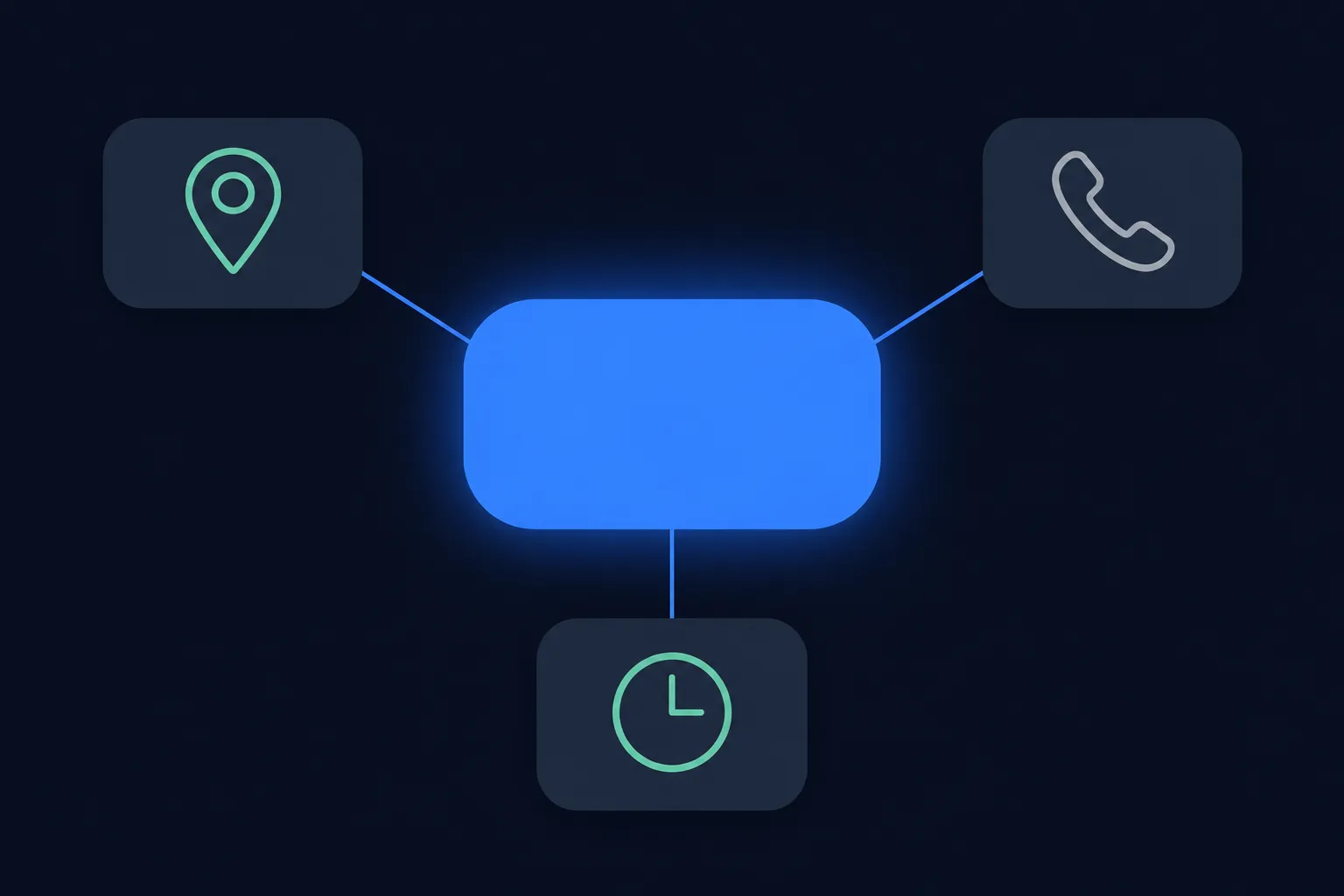
Give every branch its own page, put one LocalBusiness entity on that page, and connect each entity to a single parent Organization with parentOrganization. That order keeps each branch's address, phone number and hours in one place, and it stops two entities from describing the same branch in different ways.
Before you add anything, view the rendered HTML of one branch page. A theme, SEO plugin or store app may already output a block, and the cleanest edit is often to correct that block instead of adding a second description of the same branch.
Then build the branch block with the Local Business Schema Generator, compare it with the examples below, and test one page at a time. The local business schema guide covers the single-location version of this setup.
Give each branch its own page and entity
Start with the pages, because the markup follows them. A branch that has no page of its own, or no meaningful visible details, is not ready for its own entity. Each branch page describes one physical location, and its markup describes only that location: its name, address, phone, URL, hours, services and any other fact a visitor can read on the page.
Use the most specific subtype that fits, such as Dentist, Restaurant or AutoRepair, rather than the generic LocalBusiness. Google's general structured data guidelines ask that markup match the visible page, so write the page first and copy its facts into the markup, never the other way around.
A practical layout looks like this:
/locations/lists every branch and links to each one./locations/example-city/describes a single branch and carries that branch'sLocalBusinessentity.- The homepage or About page describes the parent company and carries the
Organizationentity. - Every branch page links back to the parent through
parentOrganization.
It helps to sketch the list on paper before touching code. Put one pushpin on a blank map for each location that has its own page, and write the address, phone number and opening hours that page will show. If two branches end up with the same phone number or the same hours on paper, decide whether that is true before it goes into markup.

Putting every branch on the homepage inside one generic LocalBusiness block does the opposite of this. Visitors and machines see a single entity with a pile of conflicting details, and no branch has a URL of its own to point at.
Connect each branch to the parent with parentOrganization
The parent is an Organization, normally described on the homepage or About page. Google's Organization structured data documentation has no required properties; it recommends relevant ones such as name, url, logo, sameAs and telephone. Each branch then names that parent with parentOrganization.
Schema.org lists parentOrganization as superseding branchOf. Older tutorials still show branchOf, so use parentOrganization in new markup and replace the older property when you edit an existing block. The parent can also list its branches with subOrganization, which is optional. The link that matters most runs from every branch back to the same parent.
Identity is where multi-location markup usually goes wrong, so settle it early. An @id is the name of one entity. The parent keeps one @id that never changes, such as https://www.example.com/#organization, and every branch refers to exactly that value.
Each branch gets its own unique @id, usually its canonical page address plus a fragment, such as https://www.example.com/locations/northfield/#localbusiness. The W3C JSON-LD 1.1 specification defines @id and requires valid JSON syntax.
Two branches that share an @id become one entity with conflicting facts. A branch that names a different parent @id on different pages splits the company in two. To see how the entities join up, build them together in the Schema Graph Builder, and read the Organization schema guide for the parent's own properties. Whether the parent belongs on every page is covered in the guide to Organization schema on every page.
A parent Organization example
The parent block goes on the homepage or About page. Replace the name, URL, logo, phone and sameAs values with details that appear on your own site, and list one @id per branch in subOrganization if you use it. Every value below is fictional and uses reserved example domains, and the block is a teaching example: display it, adapt it, and never paste it into a live page as it is.
{
  "@context": "https://schema.org",
  "@type": "Organization",
  "@id": "https://www.example.com/#organization",
  "name": "Example Dental Group",
  "url": "https://www.example.com/",
  "logo": "https://www.example.com/images/logo.png",
  "telephone": "+1-555-010-1000",
  "sameAs": [
    "https://social.example.org/example-dental-group"
  ],
  "subOrganization": [
    {
      "@id": "https://www.example.com/locations/northfield/#localbusiness"
    },
    {
      "@id": "https://www.example.com/locations/evanston/#localbusiness"
    }
  ]
}
The telephone here is the company's main number, not any branch's number. Branch numbers belong on the branch pages. Keep the parent @id identical everywhere it appears, including inside every branch block.
A branch LocalBusiness example
This block goes on one branch page only, and nowhere else. It uses Dentist as the subtype; swap in the subtype that matches your business. The url is the branch page's canonical address, the @id is that address plus #localbusiness, and parentOrganization points at the parent's @id from the previous example.
{
  "@context": "https://schema.org",
  "@type": "Dentist",
  "@id": "https://www.example.com/locations/northfield/#localbusiness",
  "name": "Example Dental Group - Northfield",
  "url": "https://www.example.com/locations/northfield/",
  "parentOrganization": {
    "@id": "https://www.example.com/#organization"
  },
  "image": [
    "https://www.example.com/images/northfield-office.jpg"
  ],
  "telephone": "+1-555-010-1200",
  "address": {
    "@type": "PostalAddress",
    "streetAddress": "100 Example Avenue",
    "addressLocality": "Northfield",
    "addressRegion": "IL",
    "postalCode": "60093",
    "addressCountry": "US"
  },
  "geo": {
    "@type": "GeoCoordinates",
    "latitude": 42.0997,
    "longitude": -87.7809
  },
  "openingHoursSpecification": [
    {
      "@type": "OpeningHoursSpecification",
      "dayOfWeek": ["Monday", "Tuesday", "Wednesday", "Thursday", "Friday"],
      "opens": "08:00",
      "closes": "17:00"
    }
  ],
  "areaServed": {
    "@type": "City",
    "name": "Northfield"
  }
}
Change every value to what that branch's page displays. The name must be visible on the page, the phone number and hours must be that branch's own, and the coordinates must come from a real geocode of that address, never a guess. Copying one city's hours into another city's block is a common slip, and it is easy to miss because both blocks stay valid JSON. Repeat the pattern for the next branch with a new @id, url, address, phone and hours, and the same parentOrganization value.
Branches without a public address
A mobile or visiting service that has no customer-facing office should not invent an address or borrow the headquarters address for every city. Use truthful areaServed values to describe the territory, and keep the service area visible on the page. Schema.org's areaServed property accepts text, a Place, an administrative area or a GeoShape.
Here the vocabulary and Google's feature part ways. Schema.org lets a service-area business use Organization, LocalBusiness or a fitting subtype. Google's Local Business documentation lists name and address as required for its Local Business rich result, so that feature stays out of reach without a truthful public address. Do not add a made-up address to satisfy it, and do not treat areaServed as a replacement for one.
{
  "@context": "https://schema.org",
  "@type": "Organization",
  "@id": "https://www.example.com/#organization",
  "name": "Example Mobile Repair",
  "url": "https://www.example.com/",
  "telephone": "+1-555-010-1400",
  "areaServed": [
    {
      "@type": "City",
      "name": "Northfield"
    },
    {
      "@type": "City",
      "name": "Evanston"
    }
  ],
  "description": "Mobile appliance repair serving Northfield and Evanston."
}
This block is valid schema.org and describes the real, visible business. It makes no claim to Google's Local Business feature, because the required public address is absent. If one of your branches does have a public address and a page of its own, give that branch the full LocalBusiness treatment from the previous section.
Required and recommended properties
Keep four levels apart when you read any property list: JSON syntax, schema.org vocabulary, one specific Google feature, and whether anything is actually displayed. A property can be valid vocabulary and still play no part in a Google feature, and a feature can be satisfied without a result appearing.
For Google's Local Business feature, name and address are required, and the type itself must identify the entity. Google recommends url, telephone, geo, openingHoursSpecification, image and, where it applies, priceRange. It treats parentOrganization and areaServed as optional for that feature. For Google's Organization feature, nothing is required, and name, url, logo, sameAs and telephone are recommended.
Reviews need extra care. Add aggregateRating or review to a branch only when the reviews are genuine, visible on the page and allowed under Google's review rules. The review schema guide explains the limits that apply to a business marking up reviews about itself.
Check what your platform already outputs
On any platform, look at the rendered HTML of a branch page before adding code, and search it for application/ld+json. If a block for that branch already exists, edit its source rather than adding a second one. The guide to adding schema markup covers the general routes, and the platform notes below follow each platform's own documentation.
- WordPress: core has no single LocalBusiness workflow. The active theme, an SEO plugin, a custom field or custom code may each output a block, so find which one is responsible. The WordPress schema guide walks through that check.
- Shopify: themes may already output structured data, and the Shopify Help Center covers its SEO settings. Check the theme's rendered output before editing the theme.
- Wix: the Wix structured data troubleshooting page covers JSON-LD format, punctuation and character cautions, and visible-content matching. Use straight quotation marks, never curly ones.
- Webflow: documentation covers a schema markup field and custom code in head and body tags. Use one route per branch page to avoid duplicate markup.
- Next.js: the JSON-LD guide renders the object in a
scripttag and covers sanitizing the serialized content. - Squarespace and HubSpot: use each platform's current code-injection, SEO or template documentation, then confirm the rendered HTML of the published page.
Test one branch page at a time
Test each branch page after publishing, in this order. Each step answers a different question, and none of them promises that anything will display.
- Open the rendered HTML and confirm the
application/ld+jsonblock is present for that page, with straight quotation marks, no trailing commas and no HTML inside the JSON. - Run the page through Google's Rich Results Test to see whether it meets the documented requirements of the Local Business feature.
- Run it through the Schema Markup Validator, which checks schema.org vocabulary only. The Schema Validator on this site checks JSON syntax and structure.
- Inspect the URL in Google Search Console and in Bing Webmaster Tools. Bing's URL Inspection includes a Markup card that reads JSON-LD, and it has a live URL view.
- Run the duplicate check described next.
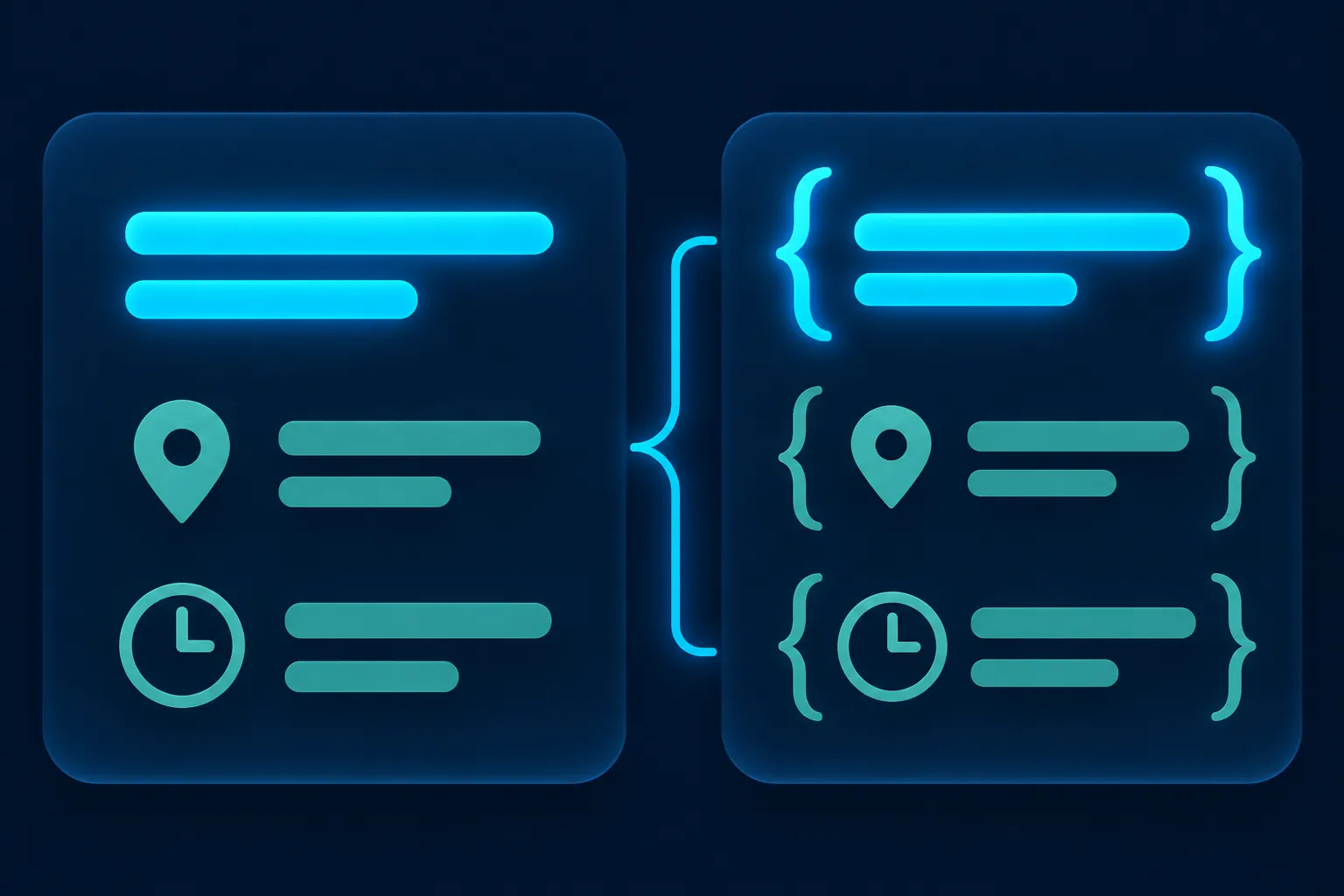
The duplicate check is simple. Search the rendered HTML for every LocalBusiness type and for the branch's @id. Each branch should appear once, under one @id, with one parent. If a theme, plugin, CMS field and custom code each add a block, remove or switch off the extras. When a branch changes its name, phone, hours, address or URL, update the page and the markup together, then run the sequence again.
Mistakes that create conflicting branch entities
Most multi-location problems come from a handful of habits. These are the ones to look for when you audit an existing site:
- The same address, phone, hours or coordinates repeated on every location.
- One generic
LocalBusinessentity on the homepage standing in for all branches. - Several location entities sharing one
@id, or one branch naming different parent@idvalues across pages. - Every branch using the parent company's URL instead of its own canonical location URL.
- A location name in the markup that the page never displays.
- Markup for a branch with no dedicated page, or for a department that is only a department on the same page.
- A closed or relocated branch still listed as open.
- A headquarters address used for a service-area business that has no public customer address.
branchOfin new code, whenparentOrganizationis available.
Two more mistakes concern the code itself. Invalid JSON, such as curly quotation marks or HTML inside the object, can stop a block from being read at all. And a valid schema.org graph is not proof that Google, Bing, Apple, Yandex or an AI system will show anything from it.
Make branch pages readable for Bing and AI search
Bing supports schema.org in JSON-LD, Microdata and RDFa, so the same branch blocks serve both Google and Bing (Bing's structured data page). Microsoft says Copilot web search can draw on Bing, so put important branch facts in visible text that renders without relying on scripts. Google says its AI features need no special schema.org markup beyond normal Search eligibility (Google's AI features documentation); that is no reason to skip accurate markup.
To let ChatGPT search reach branch pages, allow OAI-SearchBot in robots.txt (OpenAI crawler documentation). For DuckDuckGo and other services, the same accurate, crawlable branch pages and validated markup apply. Yandex offers a structured data validator, and Apple an App Search validation tool. For more, see whether AI systems use schema markup.
Questions people ask
Can I put every location's schema on the homepage?
Avoid it. A homepage block that lists every branch gives no branch a canonical URL of its own, and it invites mismatches between what the homepage displays and what each block claims. Put the parent Organization on the homepage or About page and each branch on its own page.
Does the JSON-LD itself have to be visible?
The script is not shown to visitors, but the facts inside it are. Google's guidelines ask that structured data match the text a visitor can read, so every name, address, phone number and set of hours in the markup should also appear on that branch page.
Does valid markup guarantee a rich result or an AI citation?
No. Google says eligibility does not guarantee a display, and Bing, Yandex and OpenAI each make similar statements about their own results. Valid markup makes the page easier to read and can make a documented feature available; it does not decide what any engine shows.
Can a service-area business use LocalBusiness?
In schema.org terms, yes: LocalBusiness, Organization or a fitting subtype can all describe it, with areaServed for the territory. Google's Local Business feature still needs a truthful public address, so keep the markup accurate and leave that feature aside when no address is published.
Which tool builds a branch block?
The Local Business Schema Generator builds the branch entity from the details you enter. Replace its example values with what your branch page displays, then follow the test sequence above.