

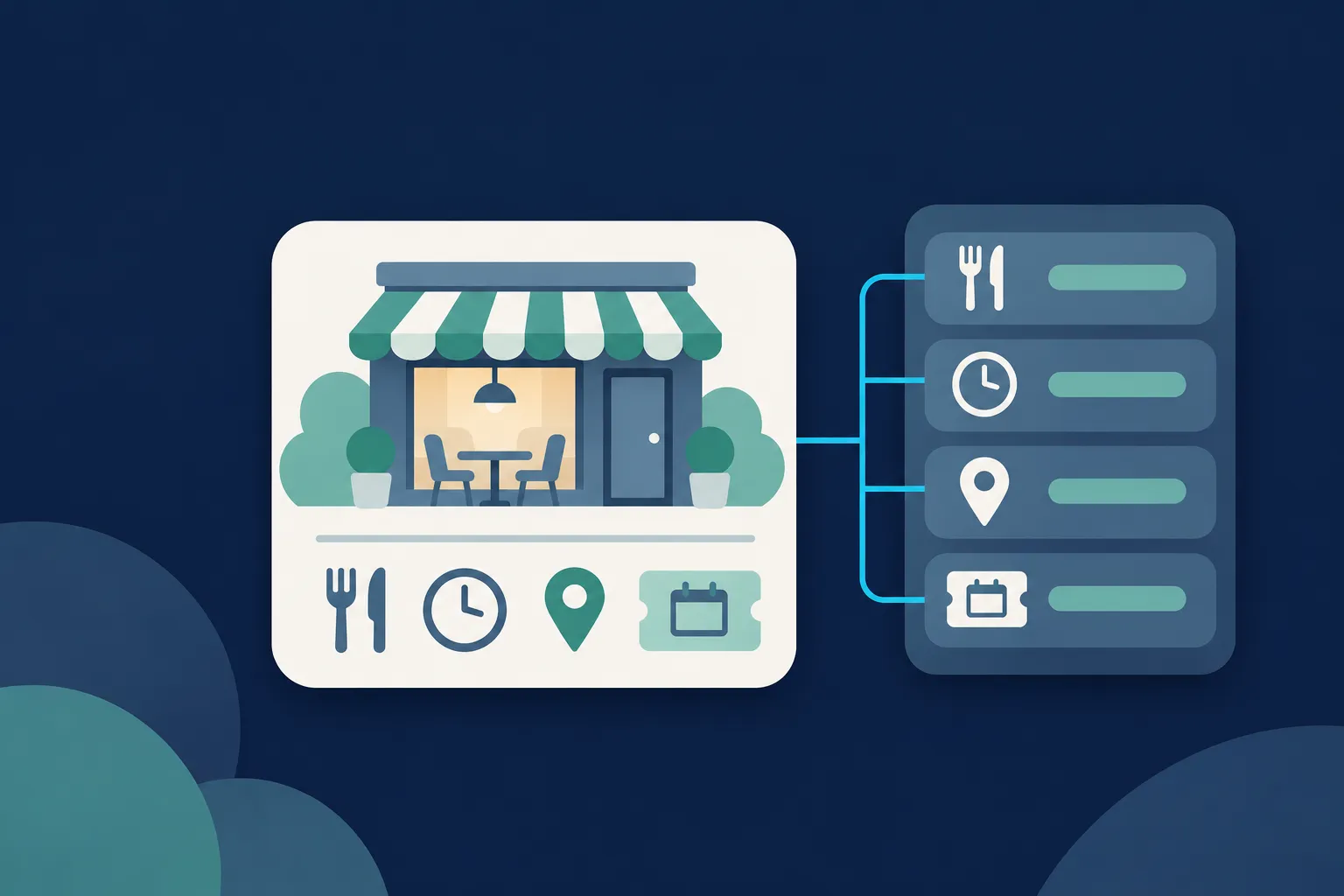
Add one Restaurant JSON-LD block to each location page, starting with the restaurant's name and address. Then add the details a diner looks for, as long as each one is also visible on that page: opening hours, a menu URL, price range, cuisine, telephone, page URL, image and coordinates.
The reservation link goes in acceptsReservations and the hours go in openingHoursSpecification. Split lunch and dinner service, hours that run past midnight and holiday closures each have a simple pattern, shown here with a fictional restaurant called Cedar Table on example.com.
Markup helps systems read these details accurately. It does not guarantee rich results, a reservation button, rankings or AI citations, so treat the visible page as the source of truth and validate the live URL when you finish.
Choose the fields for your Restaurant block
Restaurant is the most specific Schema.org type for this job. It is a subtype of FoodEstablishment and LocalBusiness, so everything in the LocalBusiness schema guide still applies, and you add the food-specific fields on top. Use one block per location page, and give each location its own @id, a stable identifier that ends in a fragment such as #restaurant.
Google's Local Business documentation requires name and address for its Local Business feature. It recommends menu, openingHoursSpecification, priceRange, servesCuisine, telephone, url and geo. Those labels describe that one Google feature. Schema.org accepts more properties than Google lists, and a property Google does not list is still valid vocabulary.
A few values have a shape worth knowing. servesCuisine takes a plain string such as "Thai" or an array such as ["Japanese", "Sushi"]. priceRange is a short relative range such as "$$" or "$15-$30", and Google says the value must be shorter than 100 characters. Use the format your own menu page makes obvious to a visitor.
image is optional for the Local Business feature, but Google's limited-access restaurant carousel requires it. The example in the next section lists three crops of the same photo, which keeps that option open without extra work.
Start from a complete Cedar Table example
The block below uses fictional facts and the reserved example.com domain. Replace every value with details that appear on your own page: the name, URLs, telephone number in international format, address, coordinates and hours. Delete any property you cannot show on the page rather than leaving a guess in place.
The JSON is the content of a script element with type="application/ld+json". Your platform, plugin or template decides where that element goes.
{
  "@context": "https://schema.org",
  "@type": "Restaurant",
  "@id": "https://example.com/restaurants/cedar-table#restaurant",
  "name": "Cedar Table",
  "url": "https://example.com/restaurants/cedar-table",
  "image": [
    "https://example.com/images/cedar-table-1x1.jpg",
    "https://example.com/images/cedar-table-4x3.jpg",
    "https://example.com/images/cedar-table-16x9.jpg"
  ],
  "telephone": "+1-555-010-0147",
  "servesCuisine": ["Mediterranean", "American"],
  "priceRange": "$$",
  "hasMenu": "https://example.com/restaurants/cedar-table/menu",
  "menu": "https://example.com/restaurants/cedar-table/menu",
  "acceptsReservations": "https://example.com/restaurants/cedar-table/reservations",
  "address": {
    "@type": "PostalAddress",
    "streetAddress": "42 Example Avenue",
    "addressLocality": "Example City",
    "addressRegion": "IL",
    "postalCode": "60000",
    "addressCountry": "US"
  },
  "geo": {
    "@type": "GeoCoordinates",
    "latitude": 41.88,
    "longitude": -87.63
  },
  "openingHoursSpecification": [
    {
      "@type": "OpeningHoursSpecification",
      "dayOfWeek": ["Monday", "Tuesday", "Wednesday", "Thursday"],
      "opens": "11:30",
      "closes": "21:00"
    },
    {
      "@type": "OpeningHoursSpecification",
      "dayOfWeek": ["Friday", "Saturday"],
      "opens": "11:30",
      "closes": "22:30"
    },
    {
      "@type": "OpeningHoursSpecification",
      "dayOfWeek": "Sunday",
      "opens": "10:00",
      "closes": "15:00"
    }
  ]
}
If you would rather fill in a form than edit JSON, the Local Business Schema Generator builds a block like this from the details you enter. Either way, the output should describe only what a visitor can read on the page.
Point menu and hasMenu at one visible menu page
You have three ways to describe a menu. You can put the menu URL in menu, put the same URL in hasMenu, or describe the menu with a structured Menu object that uses hasMenuSection and hasMenuItem. Google's Local Business documentation names menu as a fully qualified URL. Schema.org's hasMenu accepts a URL, text or a Menu object.
For most restaurant sites, the simplest approach is a visible, crawlable menu page with that one URL in both menu and hasMenu, as in the Cedar Table example. A structured Menu object makes sense when the menu is written out in visible HTML on the same page and your implementation needs item-level detail.

Google's Local Business requirements work at the restaurant level: the business, its hours and the menu URL. If you add item-level markup, treat it as Schema.org description for systems that read it, and do not expect a particular Google display from it. Whatever you choose, the menu in the markup has to match the menu on the page, including after seasonal changes.
Write regular, split and overnight hours
Use one OpeningHoursSpecification object for each consistent schedule. In the Cedar Table example, Monday to Thursday share one object, Friday and Saturday share another, and Sunday has its own. Group days only when the opening and closing times are identical.
Whoever edits the hours on the page should edit the markup in the same sitting, because a mismatch between the two is the easiest error to introduce and the hardest to notice.
Split service is the same pattern repeated. A restaurant that serves lunch and dinner on Friday with a gap between them uses two objects for that day, one per service. Add these to the openingHoursSpecification array, replacing the Friday entry from the first example.
[
  {
    "@type": "OpeningHoursSpecification",
    "dayOfWeek": "Friday",
    "opens": "11:30",
    "closes": "14:00"
  },
  {
    "@type": "OpeningHoursSpecification",
    "dayOfWeek": "Friday",
    "opens": "17:00",
    "closes": "23:00"
  }
]
For hours that cross midnight, use one object with a closing time earlier than the opening time. A fictional late service that opens at 18:00 on Saturday and closes at 03:00 is written as a single Saturday entry. Do not split it into two days yourself; the earlier closing time carries the meaning.
{
  "@type": "OpeningHoursSpecification",
  "dayOfWeek": "Saturday",
  "opens": "18:00",
  "closes": "03:00"
}
Mark seasonal closures and holiday hours
Google documents validFrom and validThrough for seasonal hours and seasonal closures. Add them to an OpeningHoursSpecification object to limit it to a date range. The example below marks Cedar Table as closed from 24 to 26 December by setting opens and closes to "00:00". Change the two dates to your own closure, and remove or update the object once the dates have passed.
{
  "@type": "OpeningHoursSpecification",
  "opens": "00:00",
  "closes": "00:00",
  "validFrom": "2026-12-24",
  "validThrough": "2026-12-26"
}
Individual holiday exceptions are less settled than a seasonal range. Publish every holiday change visibly on the page first, then use the most precise hours representation that Google's current Local Business documentation and Schema.org's OpeningHoursSpecification support. For an unusual case, confirm the current Google guidance before you encode it. Different systems may handle exceptions differently, so the visible note is your safest record.
Add the reservation link and know its limits
acceptsReservations can hold true, false or the URL where a visitor books. Schema.org's acceptsReservations also allows older "Yes" and "No" text, but true, false or a URL is the better choice. Cedar Table uses its reservation page URL, which tells any system reading the block where booking happens.
Google's Local Business documentation does not list acceptsReservations as a property for that feature, so adding it does not create a booking button in Google Search. A reservation button or booking action depends on separate platform support, and this property does not promise one. Treat the URL as accurate Schema.org information, and keep a clearly visible booking link on the page for people.
Check Google's requirements and the restaurant carousel
For the Local Business feature, the working checklist is short: name and address are required, and the recommended fields are worth including whenever you can show them on the page. A valid block can still produce no enhancement. Google's structured data documentation distinguishes generic Schema.org validation from Google feature testing, and passing either test does not guarantee a display. The rich results guide explains that difference in more detail.
Google's restaurant carousel has limited access. Its carousel documentation requires restaurant image and name, recommends address and servesCuisine, and expects ItemList markup on qualifying summary pages. A restaurant group with several location pages and an index of them may meet that shape, and the multiple locations guide covers how to keep each location's entity separate.
Make the restaurant markup readable for Bing and AI search
Bing reads JSON-LD, so the same Restaurant block serves both engines, and it reaches DuckDuckGo and other services built on Bing results (Bing structured data documentation). The Markup card in Bing Webmaster Tools' URL Inspection shows the JSON-LD on a live page. Allow Applebot to crawl the page for Apple's search experiences (About Applebot), and use Yandex's Structured Data Validator if you serve that audience.
To let ChatGPT search reach the page, allow OAI-SearchBot to crawl the site (OpenAI help article). Copilot web answers use Bing Search (Microsoft Copilot web access), and for Perplexity the page should be crawlable and consistent with your other facts. See whether AI systems use schema markup for the full comparison.
Check what your platform already outputs
Before adding a block, view the rendered source of your restaurant page and look for Restaurant or LocalBusiness already in it. Two restaurant entities on one page describe the same place twice and may disagree. Keep one authoritative entity per location page, and update the existing markup when it is the better source.
On WordPress, inspect the rendered page for output from your theme and each SEO or schema plugin before adding more; the WordPress schema guide covers that check. Shopify's theme documentation emphasizes automatic microdata for products, so a restaurant site should look at the active theme and custom fields first (Shopify help; Shopify guide). Wix accepts JSON-LD custom markup, with character and placement limits described in its structured data troubleshooting article and the Wix guide.
Squarespace says it automatically generates Local Business and other schemas that cannot be edited or removed through the standard interface, so check for duplicates before adding custom code (Squarespace SEO documentation; Squarespace guide). Webflow says to use either the Schema markup field or custom code, not both (Webflow documentation; Webflow guide).
On a Next.js site, render JSON-LD in a script tag in layout.js or page.js, sanitize the serialized values and validate the rendered output (Next.js JSON-LD guide; Next.js and React guide). On HubSpot, confirm what your current template and modules output before adding custom JSON-LD, and keep one authoritative restaurant entity per location page (HubSpot guide).
Validate the live page
Run two different checks, because they answer different questions. The Schema Markup Validator checks JSON syntax and Schema.org vocabulary. Google's Rich Results Test checks eligibility for Google features. Google recommends using both for their different purposes. The Schema Nova validator is another place to paste code, and the guide to replacing the old testing tool explains how the checks fit together.
Then inspect the live URL where each engine lets you. Google Search Console shows how Google reads the page. Bing Webmaster Tools offers the Markup card, and Yandex has its own validator. Tools report syntax, parsing or eligibility signals, and none of them promises a display.
Recheck the block whenever your hours, menu or reservation link change.
Questions people ask
Should a restaurant use Restaurant or LocalBusiness?
Use Restaurant on a restaurant page. It is the more specific type and is still a LocalBusiness, so systems that understand the broader type can read it, and it carries food-specific properties such as servesCuisine and acceptsReservations.
Are menu and hasMenu the same property?
No, but they can carry the same value. menu is the property Google's Local Business documentation recommends, as a fully qualified URL. hasMenu is the broader Schema.org property, and a restaurant may include both when they point to the same visible menu.
Can acceptsReservations hold a booking URL?
Yes. Schema.org allows true, false or a reservation URL. Google does not list the property for its Local Business feature, so keep a visible booking link on the page and do not expect a booking button from the markup alone.
Should I include menu items and prices in the JSON-LD?
Only when the full menu is visible on the same page and you need item-level detail. Google's restaurant requirements cover the menu URL rather than individual items, prices, ingredients or allergens, so a menu URL in menu and hasMenu is the simpler place to start.
Does restaurant markup work outside Google?
Bing and Yandex read Schema.org markup, and AI search systems reach the page through crawlers such as OAI-SearchBot. None of them promises a particular display. Accurate visible details, crawlable pages and valid JSON-LD serve all of them, and you can check each engine with its own tool.